

Overview
Chat-based editing lets you make edits to your project by simply describing what you want. For example, the prompt “Add chill background music” will automatically add a chill background track to your project.How it works
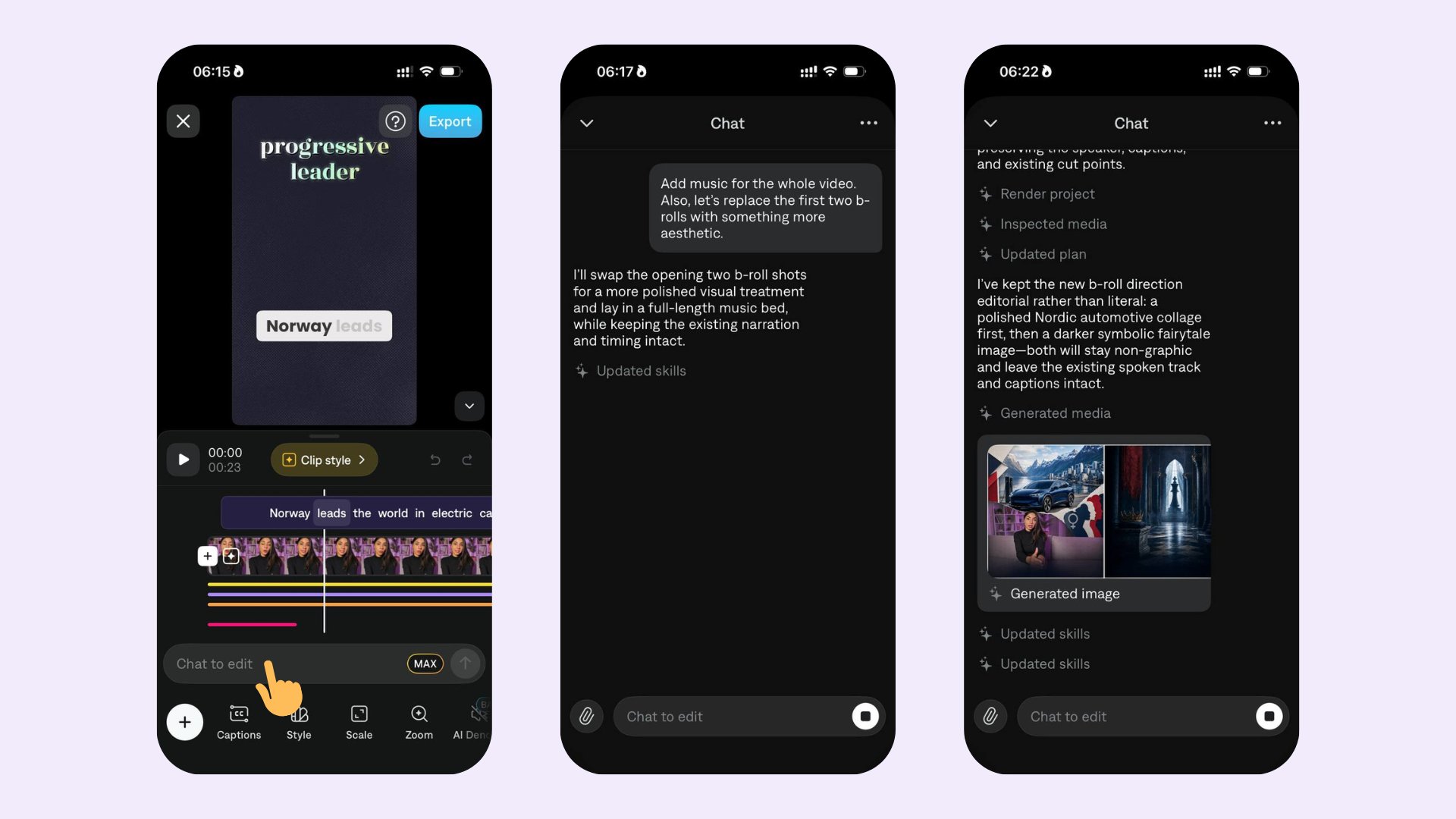
1
Open Chat to edit
After opening a project, tap Chat to edit to open the chat.
2
Write your prompt
Describe the changes you want. A prompt can be a sequence of actions — for example, replacing images and adding music. You can also attach additional media assets by clicking the paperclip icon next to the chat prompt.
3
Send and watch the plan
After you send the prompt, Captions starts planning the edits and shares updates as it updates the project.
Example prompts
- Add chill background music
- Remove/replace background with the X picture
- Change the font to comic sans
- Generate a b-roll about duck soaps and add it to the first shot
- Edit captions
Attach media to your prompt
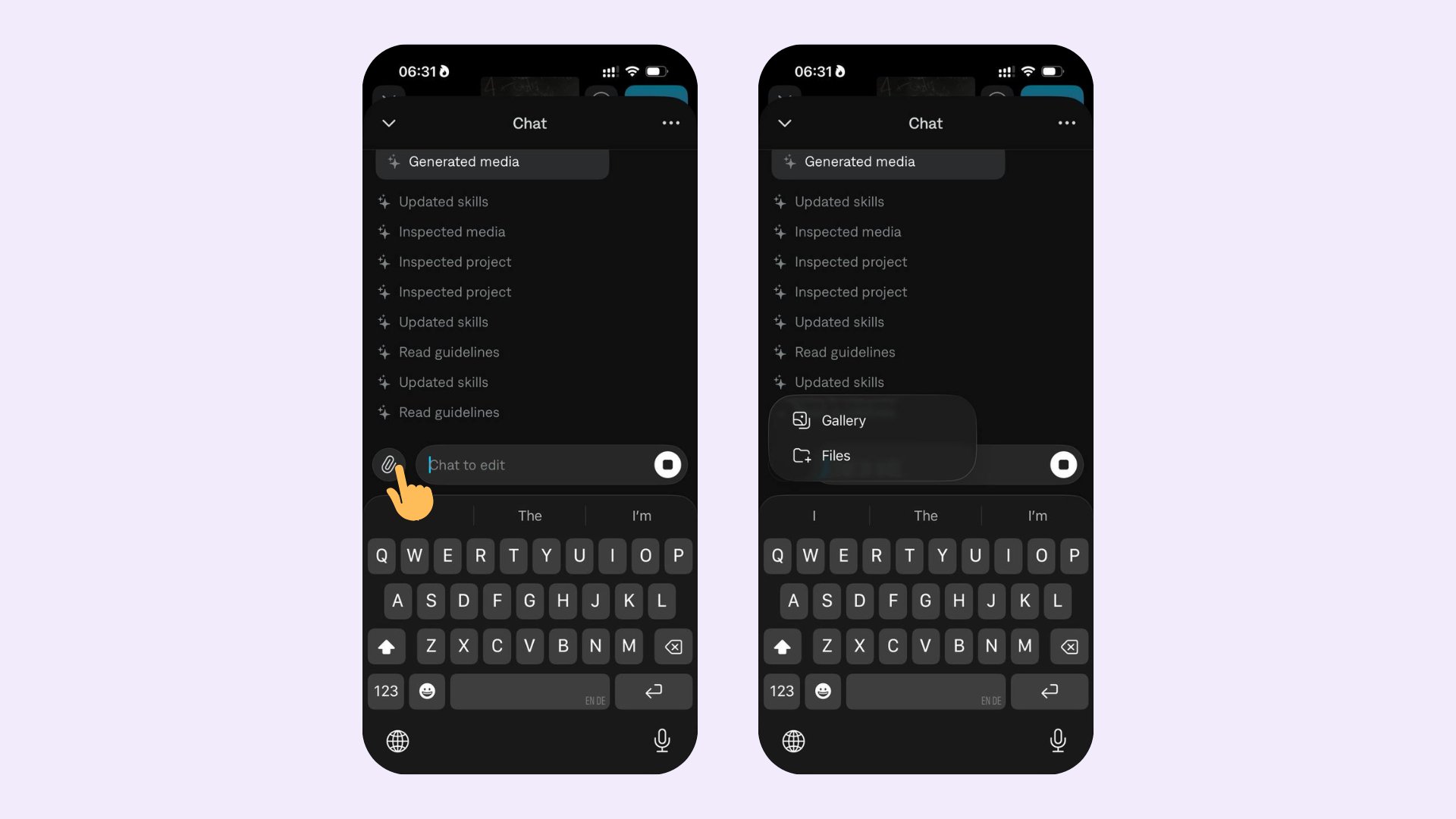
- Attach images (e.g., background replacements).
- Attach videos (e.g., b-roll to insert).
- Combine attachments with text in a single prompt to give the editor more context.