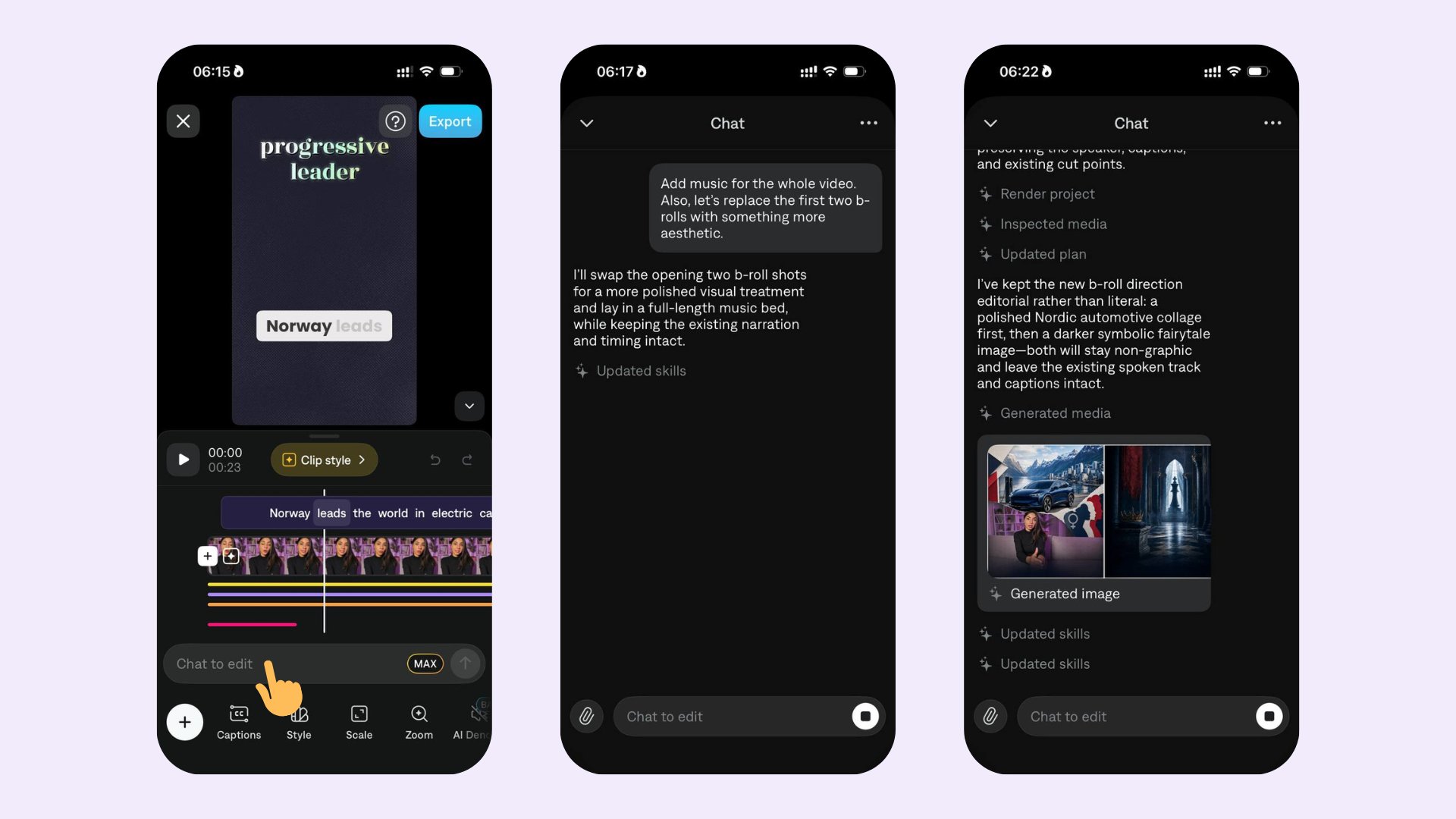
We’re rolling out improvements to Chat on iOS. You may notice changes to your experience over the next few weeks.
Overview
Chat-based editing lets you make edits to your project by describing what you want in plain language. For example, the prompt “Add chill background music” will automatically add a chill background track to your project.
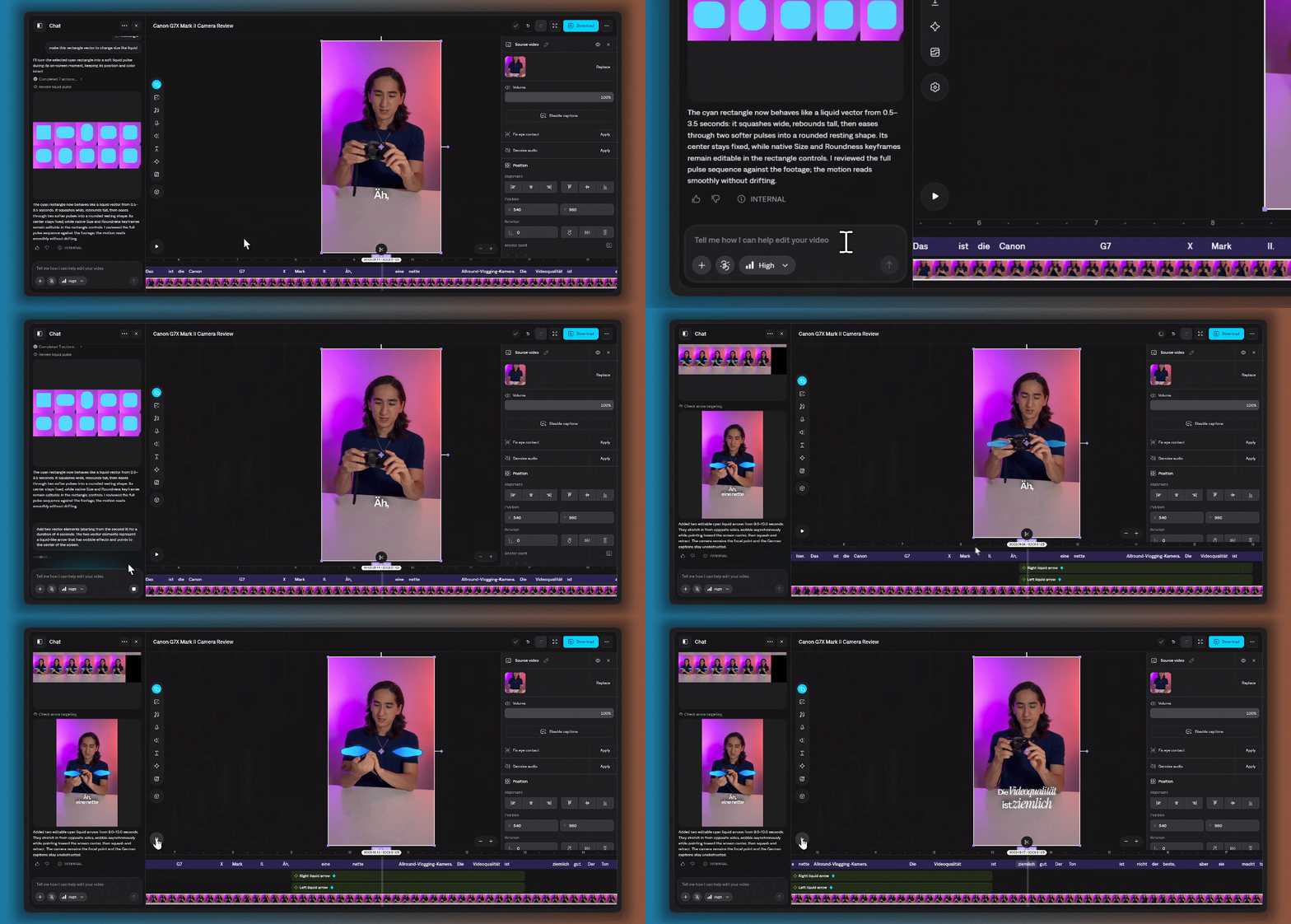
On Web, Chat can handle nearly anything you’d do manually in the editor — including motion graphics for vector elements, kinetic captions, product callouts, smooth camera moves, tracked effects, beat-synced graphics, and clean transitions.
How it works
Open Chat to edit
After opening a project, tap Chat to edit to open the chat.
Write your prompt
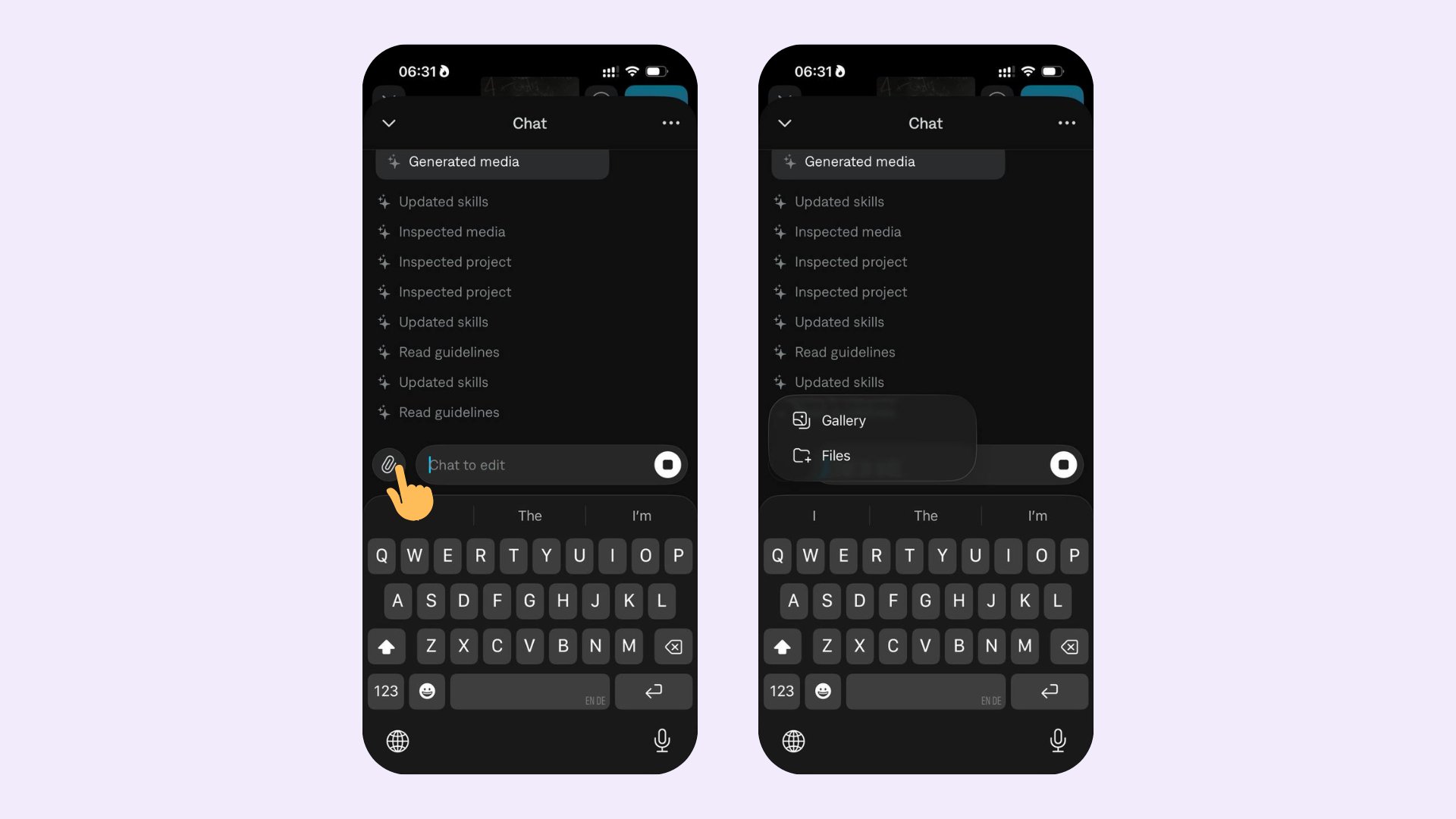
Describe the changes you want. A prompt can be a sequence of actions — for example, replacing images and adding music. You can also attach additional media assets by tapping the paperclip icon next to the chat prompt.
Send and watch the plan
After you send the prompt, Captions starts planning the edits and shares updates as it updates the project.
Example prompts
- Attach images (e.g., background replacements).
- Attach videos (e.g., b-roll to insert).
- Combine attachments with text in a single prompt to give the editor more context.
Prompts are flexible. You can chain multiple requests in one message, or iterate with follow-ups like “make it softer” or “use a different font”.
How it works
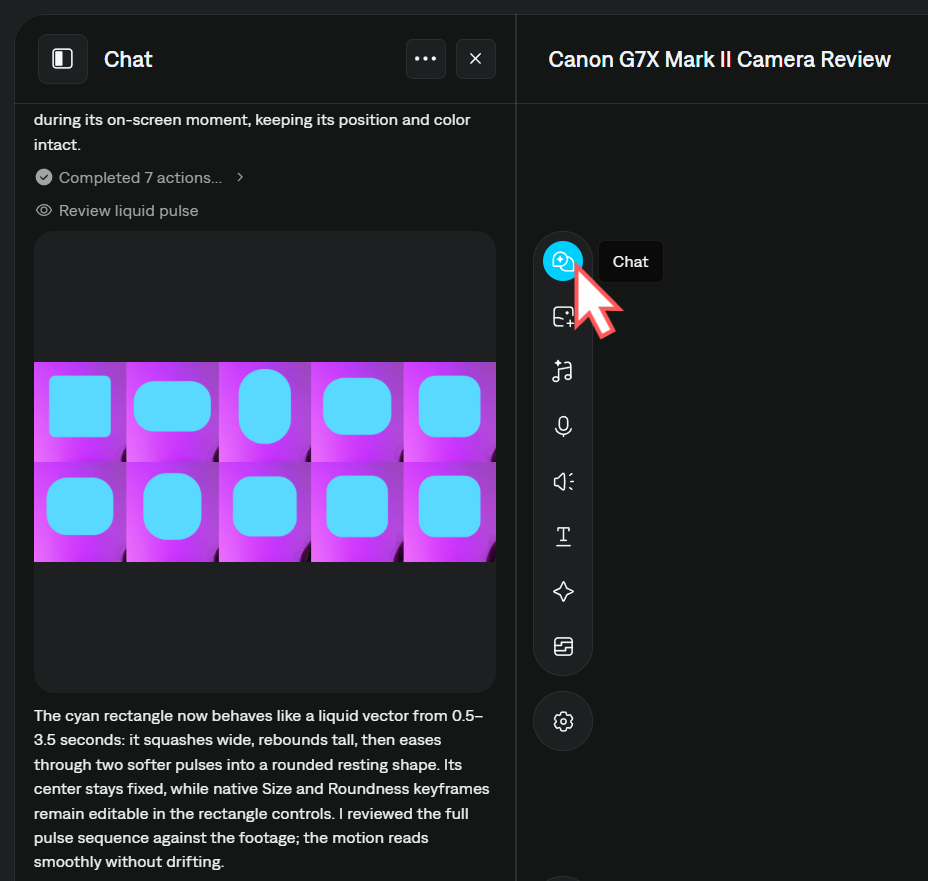
Open Chat
From the left toolbar, select Chat. Write your prompt
Type the edits you want Captions to make. You can describe a single change or a sequence of actions in one message.
Reference timeline elements (optional)
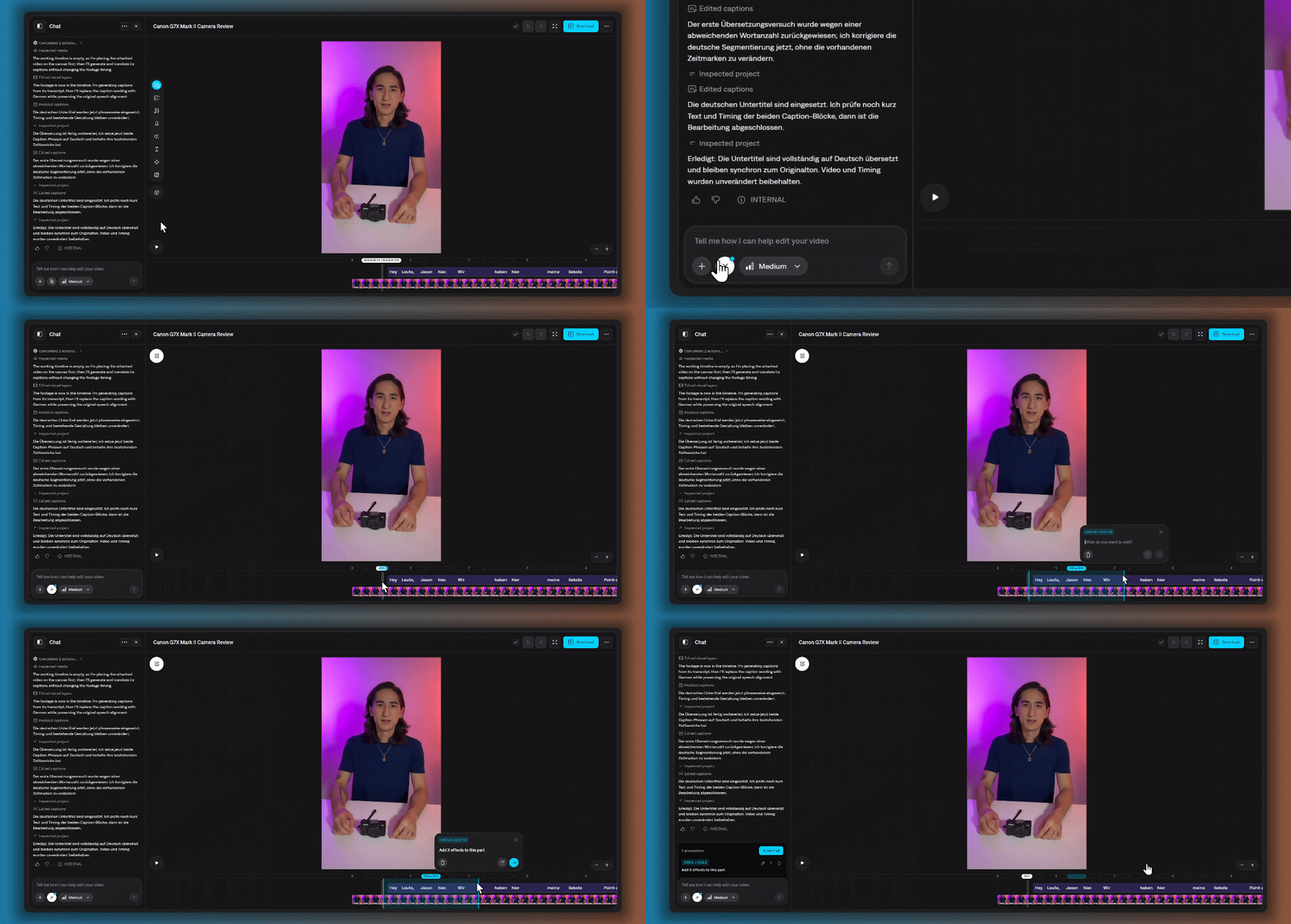
Click elements on the timeline to attach them to your prompt. For example, click a piece of text if you want to add a transition to that specific element. You can select multiple elements to reference in your prompt by holding down the Shift key. Add annotations (optional)
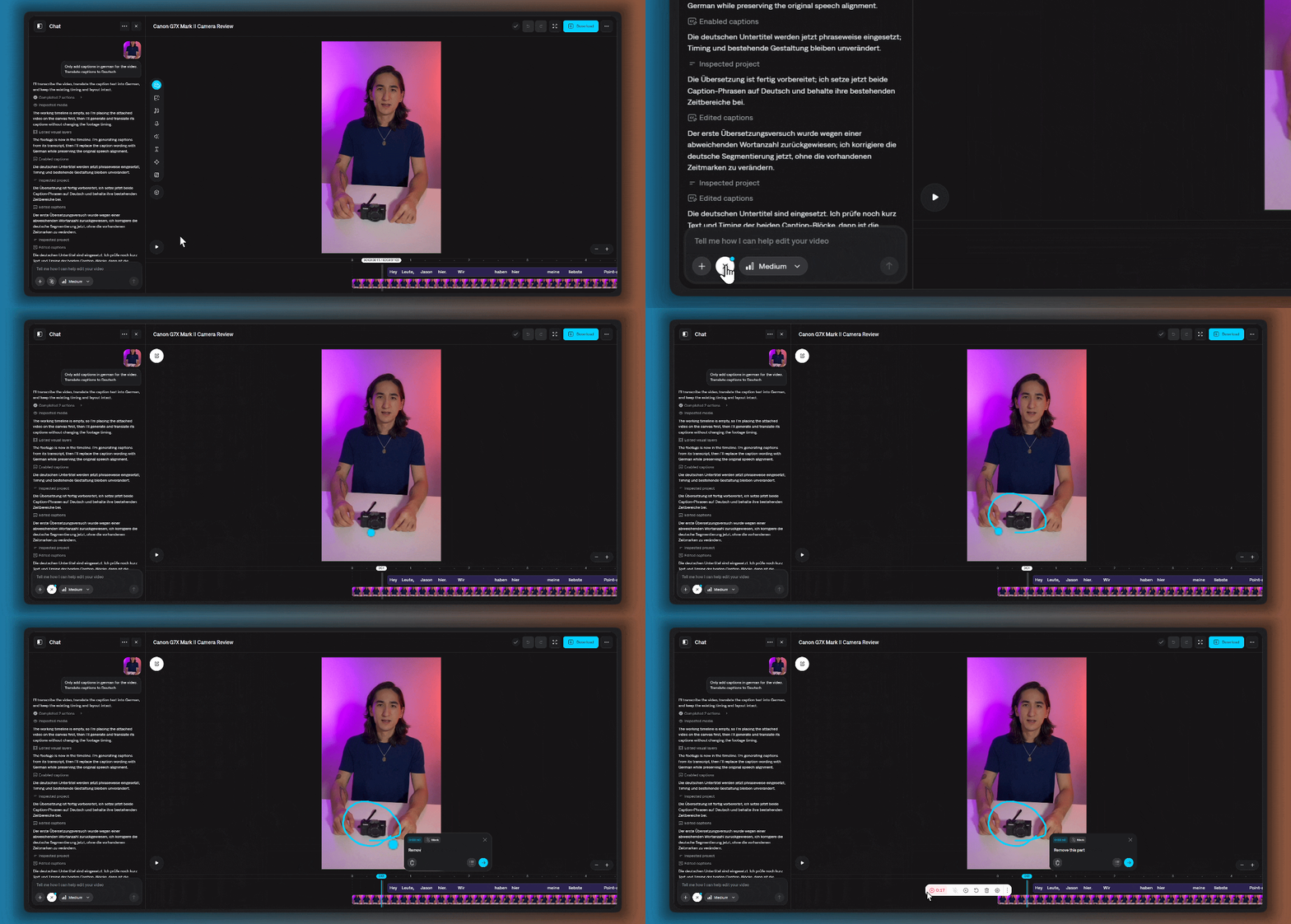
Use the Add annotations button to mark parts of the video or timeline. You can add prompts to those annotations, then either send them for editing right away or add them to a queue to process together later. Attach assets (optional)
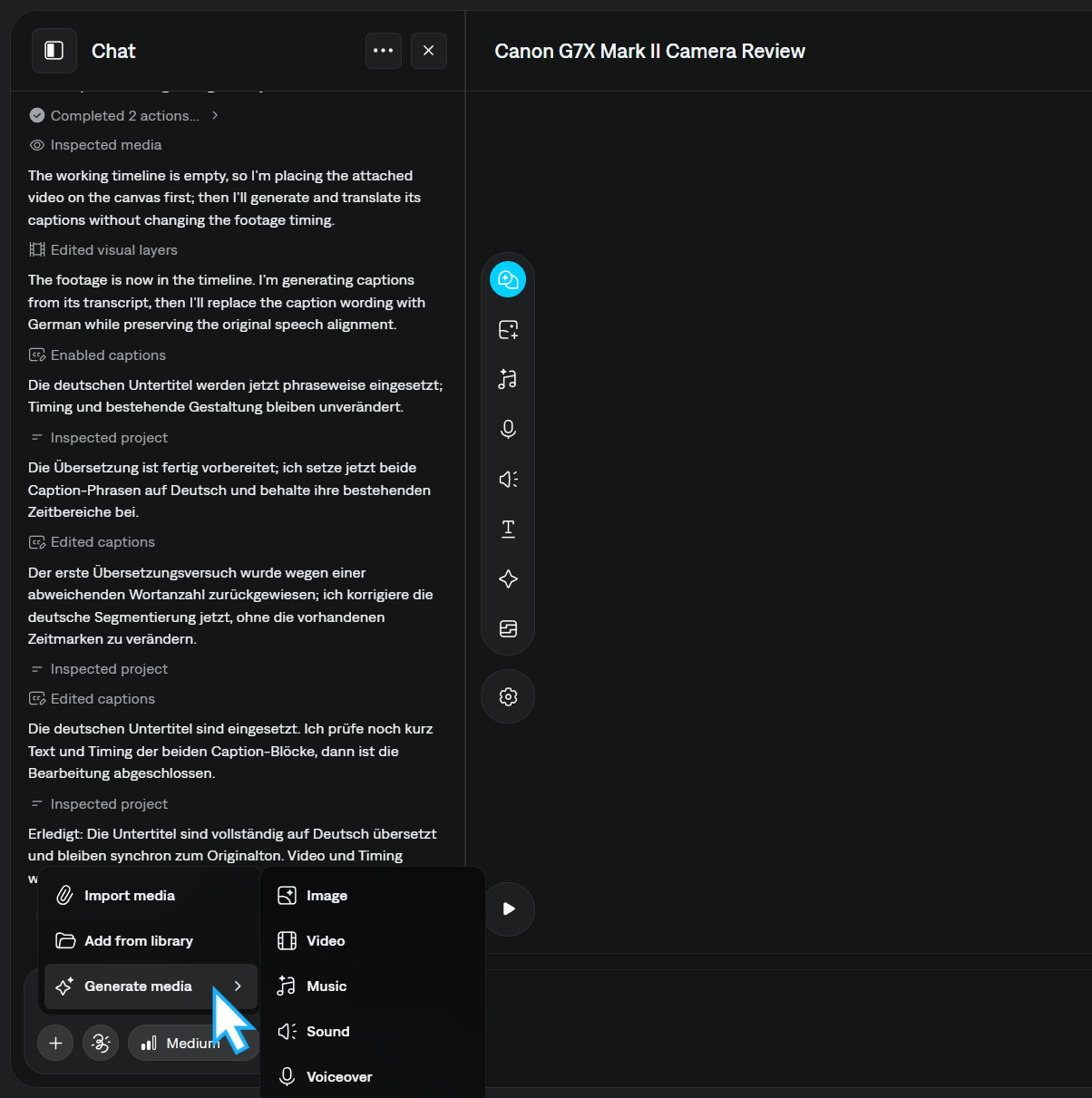
Click the plus icon to add more assets to your prompt:
- Import media from your device
- Add assets from your library
- Generate new media — image, video, sound, voiceover, or music
Set editing effort
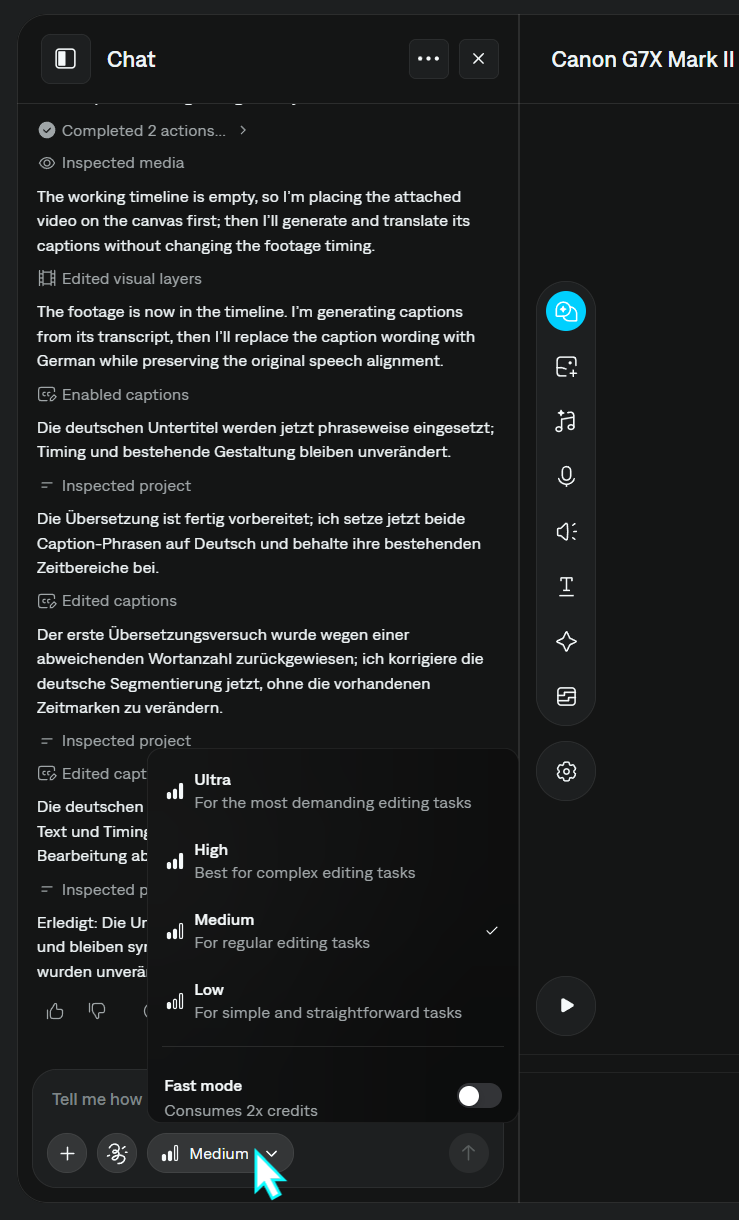
Choose how much effort Chat should put into the edit based on how complex the task is:
- Low — Simple, straightforward edits
- Medium — Regular edits
- High — Complex tasks (for example, advanced motion design)
- Ultra — The most demanding tasks
Send your prompt
Click the send button. Captions starts planning the edits. You can keep working on other parts of the project while Chat processes your request.
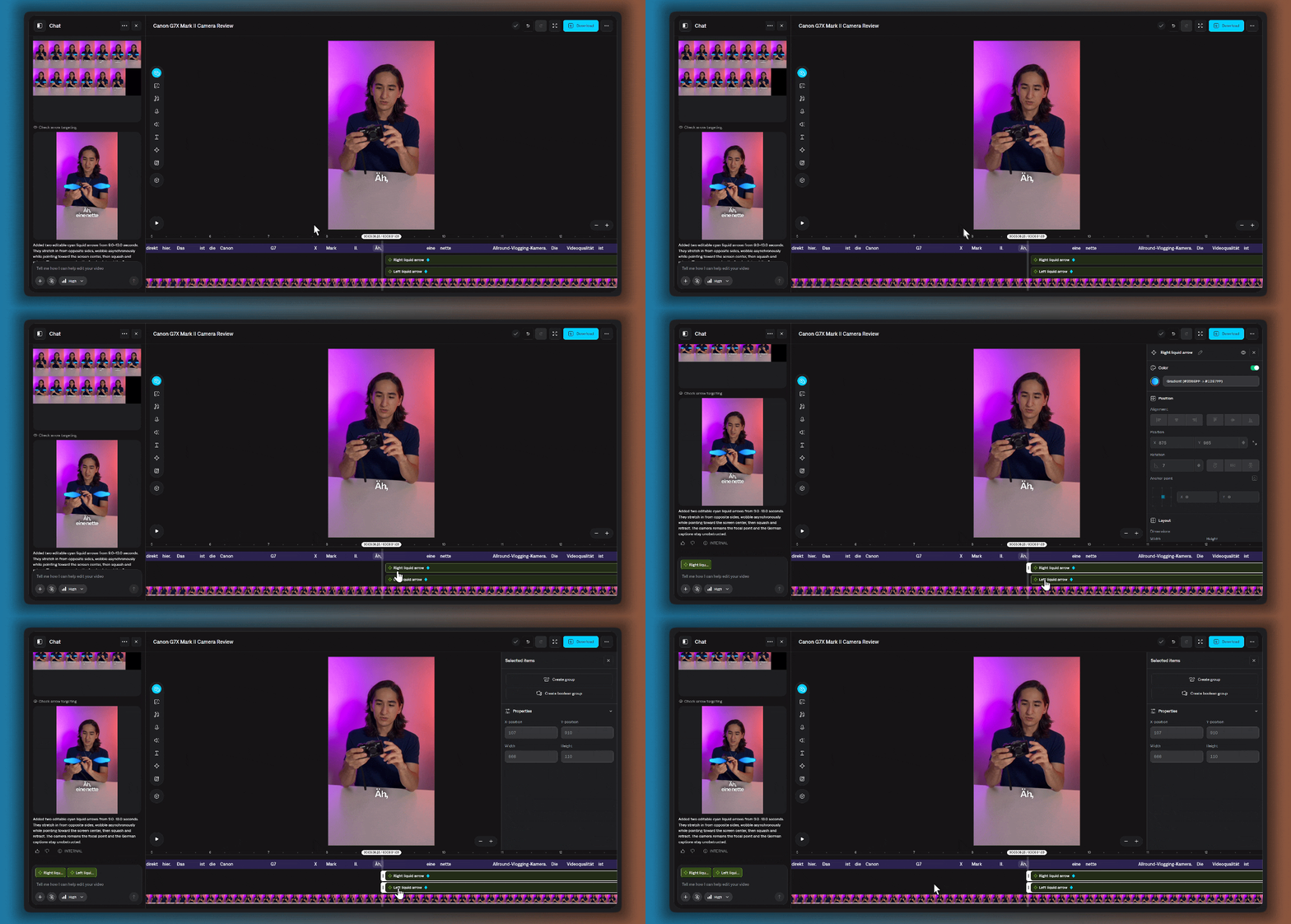
Design and animate custom elements
You can also use Chat to design and animate custom elements, including vector graphics. For example, ask Chat to create two vector elements that act like arrows with a wobbling, liquid feel.Example prompts
Prompts are flexible. You can chain multiple requests in one message, annotate specific timeline moments, or iterate with follow-ups like “make it softer” or “use a different font”.
Last modified on October 16, 2026