> ## Documentation Index
> Fetch the complete documentation index at: https://captions.ai/llms.txt
> Use this file to discover all available pages before exploring further.
# Browse avatars or create a custom avatar from a text prompt
> Browse our avatar library in Captions to create avatars, AI twins, and generate custom avatars from a photo or prompt with Mirage Avatar X.
## Overview
**Mirage Avatar X** is our next-generation avatar model — the most powerful we've ever made. Unmatched realism. Hyper-expressive emotion. Natural movements. Now available in Captions.
There are two ways to get an avatar, and both start in the same place:
1. **Start in the avatar library.** Browse 200+ ready-made avatars spanning diverse people, personas, and looks you can pick and generate with immediately.
2. **Or make your own custom avatar.** If you can’t find what you’re looking for, create a custom avatar simply by describing the person you have in mind with a text prompt. When you save it, your avatar lands in the same **avatar library** as the presets, ready to use in any video.
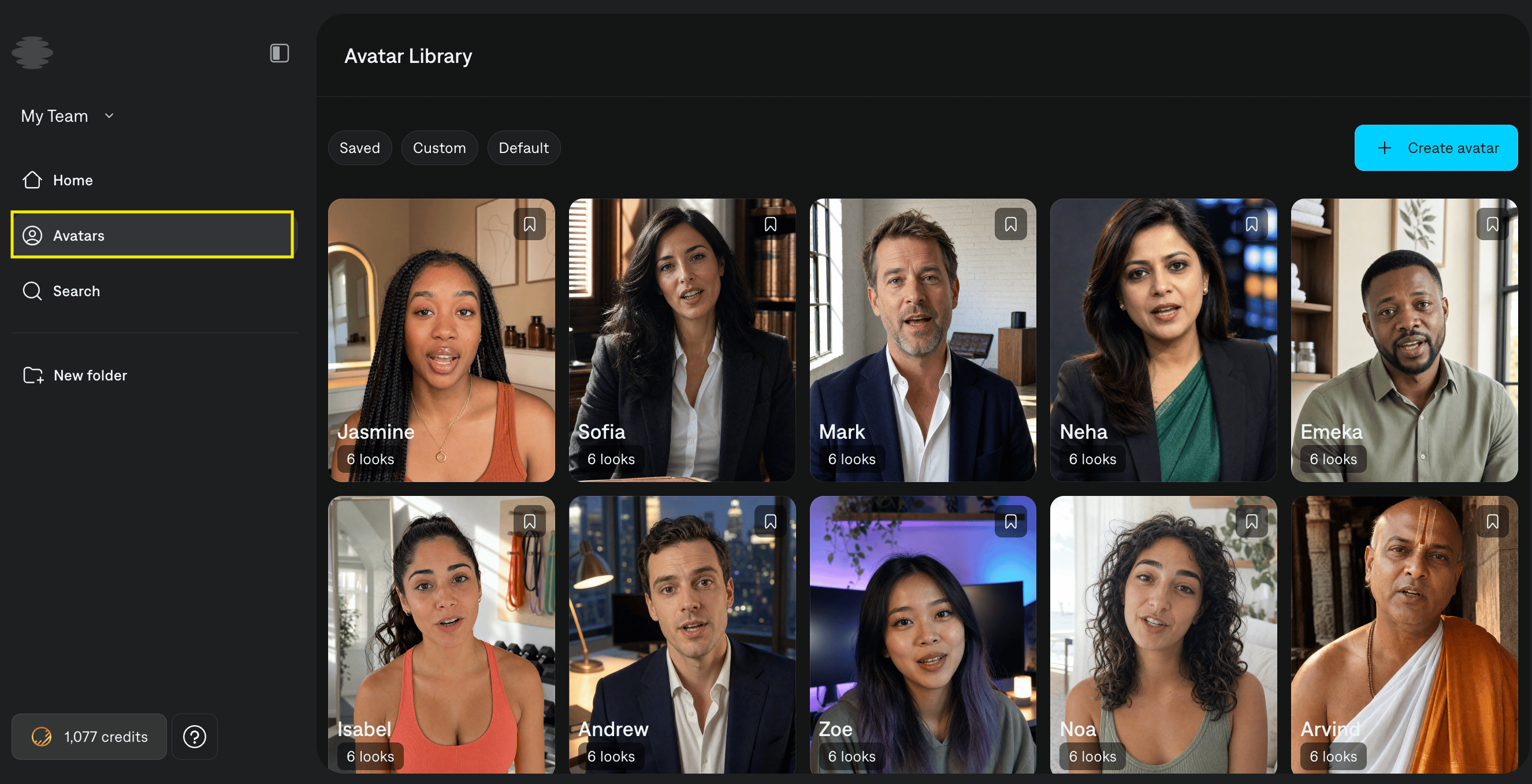
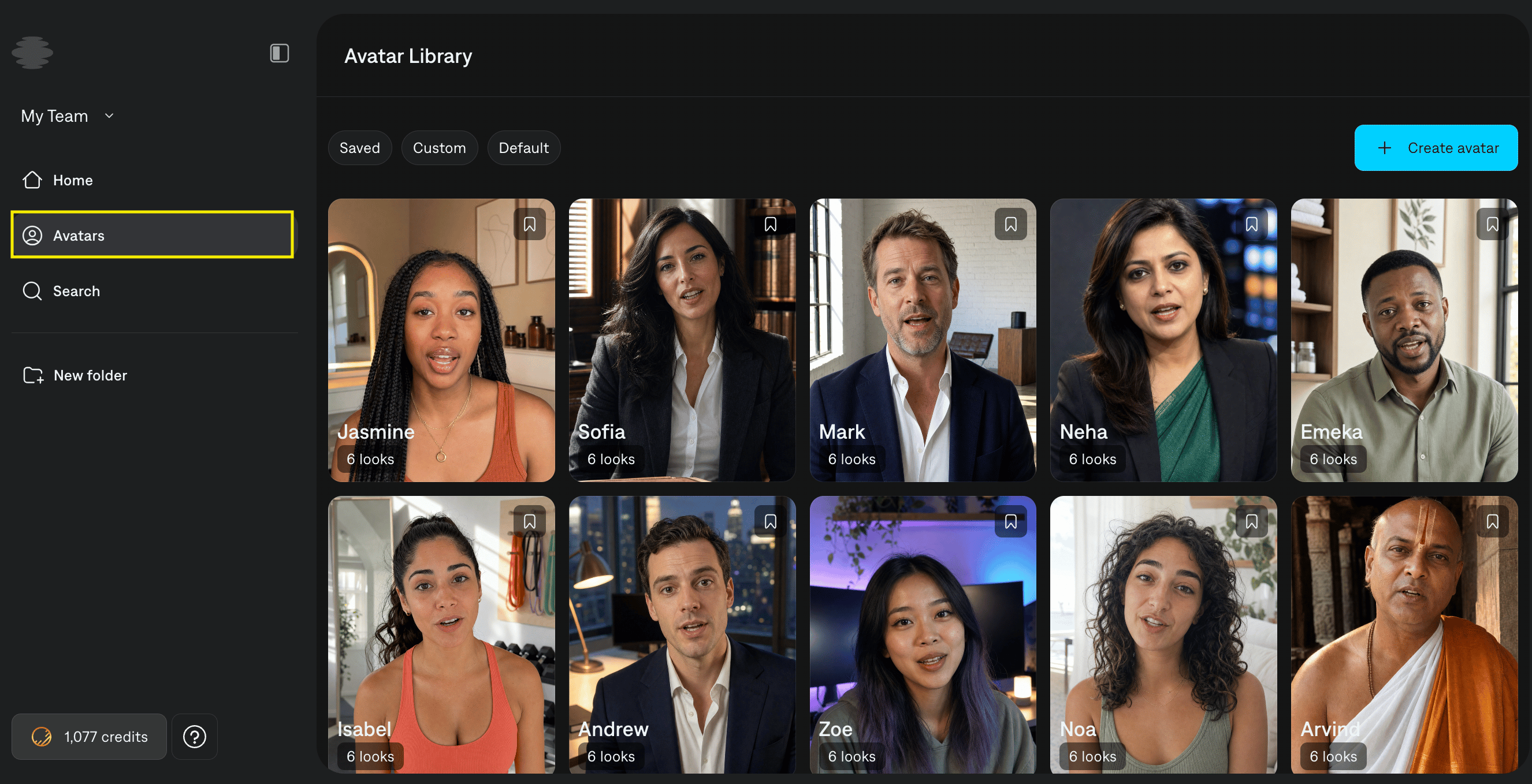
On Captions on Web, the **Avatar library** is where you browse our extensive and diverse range of ready-made avatars.
## Open the Avatar library
Click the **Avatar Library** in the left sidebar to open the **Avatars** page. The **Avatar library** lists **public avatar** (available to everyone) and **private avatars** (avatars you created, visible only to you).
 ## Create a custom avatar
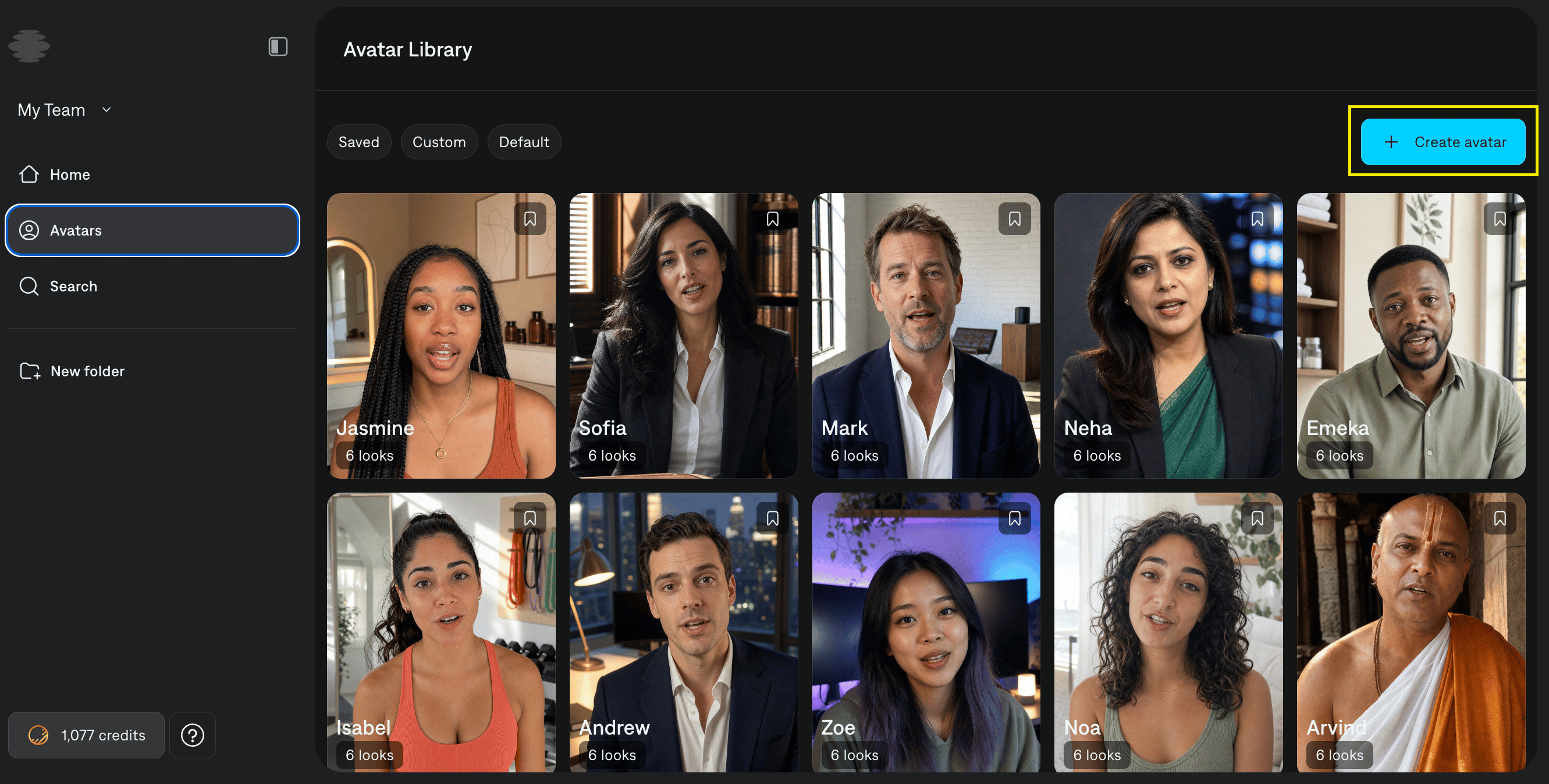
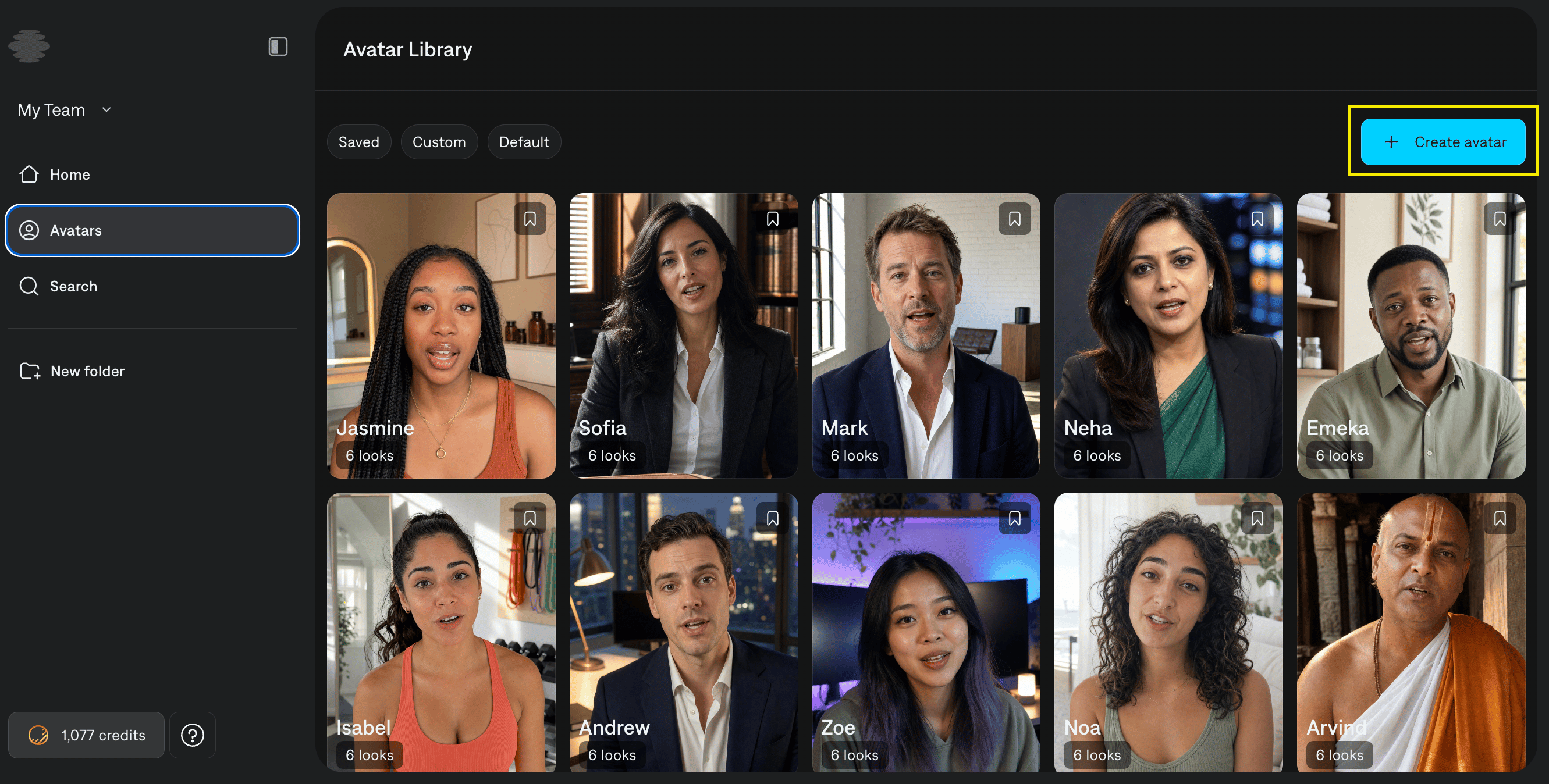
Click **Create avatar**. You can start in one of two ways:
* Create an AI twin
* Describe a new avatar based on a prompt
## Create a custom avatar
Click **Create avatar**. You can start in one of two ways:
* Create an AI twin
* Describe a new avatar based on a prompt
 ## Create an AI twin
Record a short video of yourself reading the script that shows up on screen. It should show:
* The face clearly
* The mouth open with teeth visible
* A mid or close-up shot
* Only one person in the frame
* A subject whose gender matches the speaker voice you plan to use
## Create an AI twin
Record a short video of yourself reading the script that shows up on screen. It should show:
* The face clearly
* The mouth open with teeth visible
* A mid or close-up shot
* Only one person in the frame
* A subject whose gender matches the speaker voice you plan to use
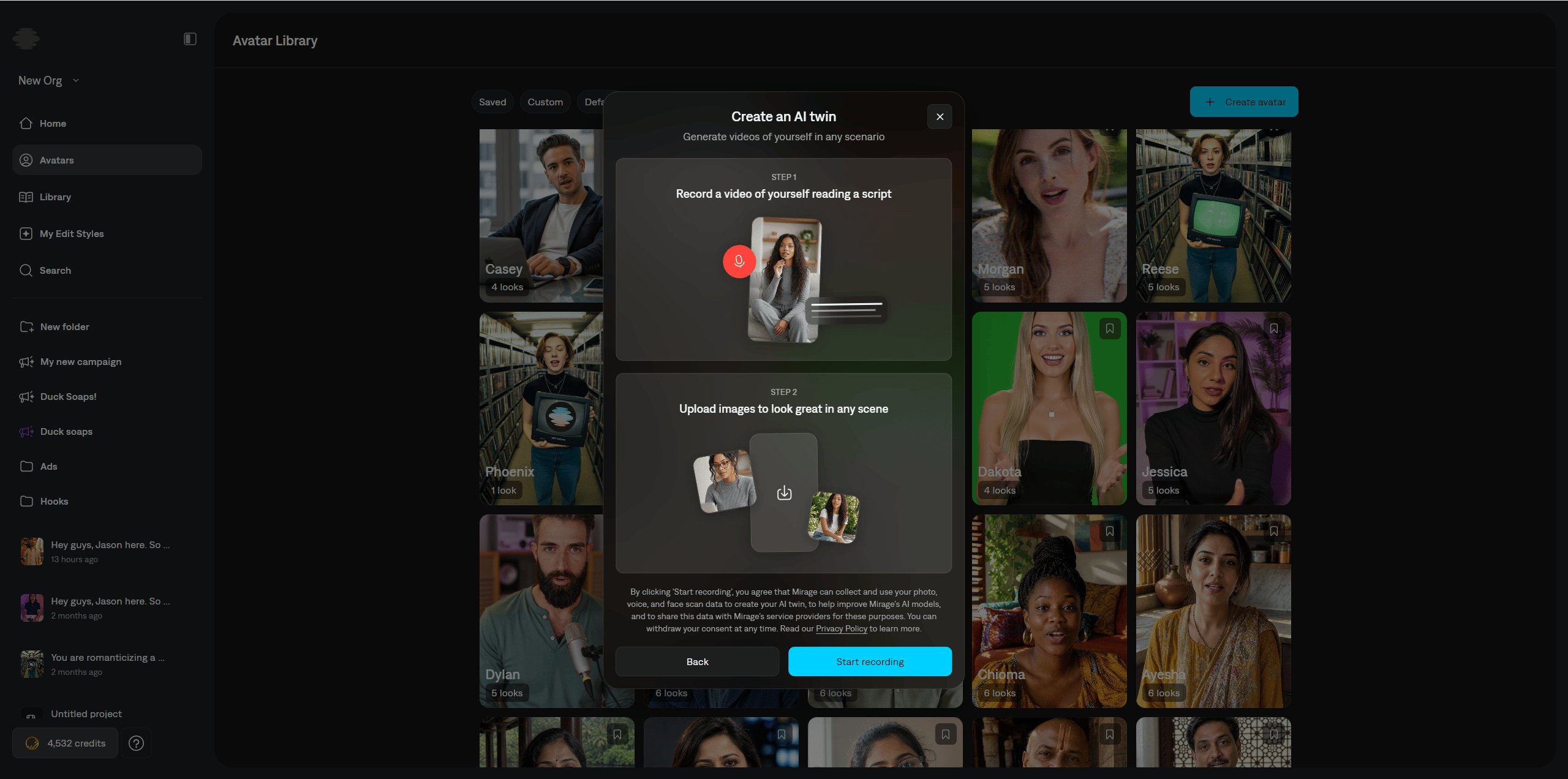 After recording the video, you can optionally upload reference images of yourself in different environments. This will help Captions generate more diverse looks for your AI twin.
After confirming reference images, Captions then generates a few **sample looks** for the avatar.
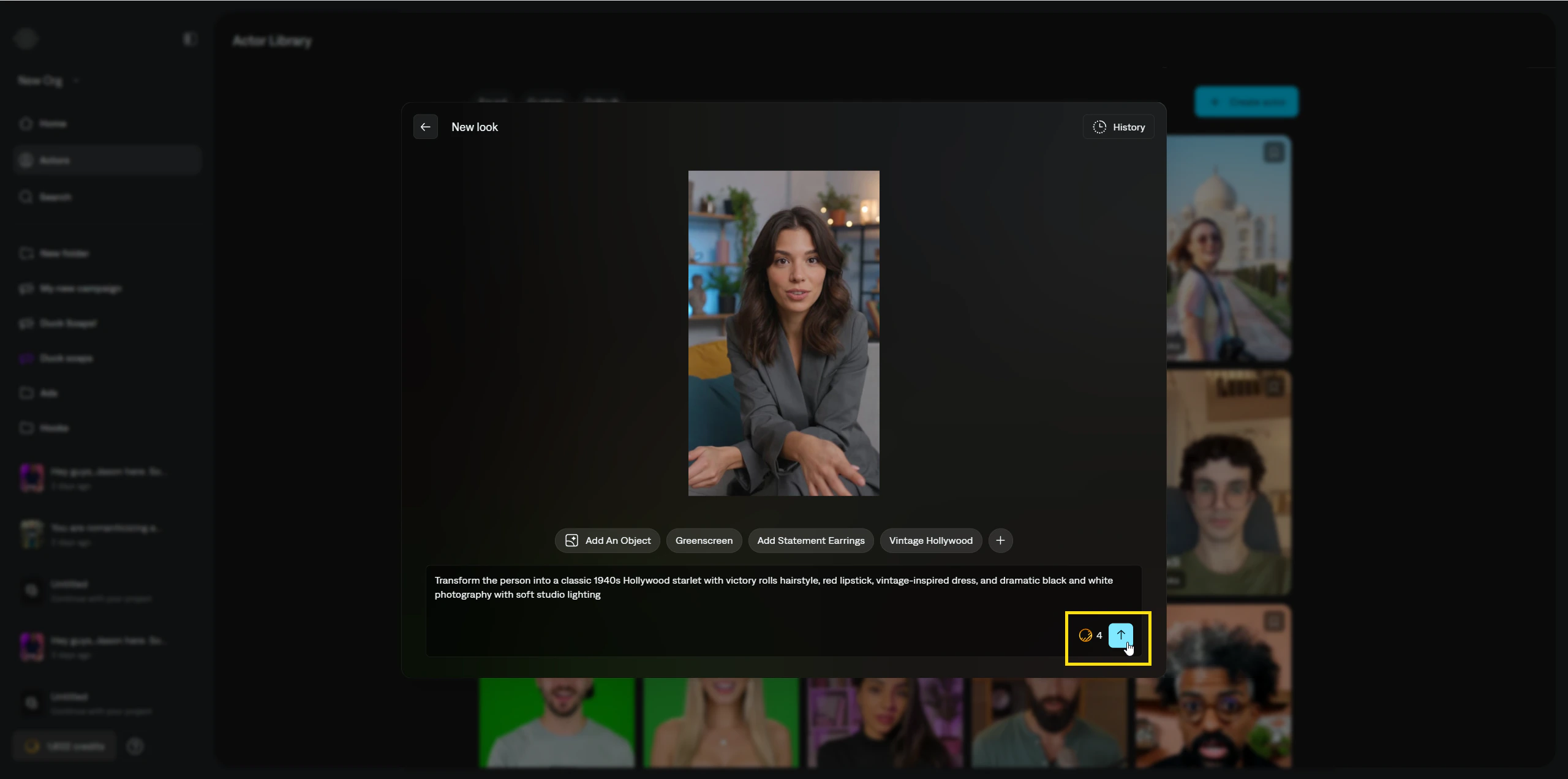
To try another variation, click **New look**. In the prompt field, describe the changes you want. You can also upload images of objects or other references to guide the new look. Creating new looks uses credits.
After recording the video, you can optionally upload reference images of yourself in different environments. This will help Captions generate more diverse looks for your AI twin.
After confirming reference images, Captions then generates a few **sample looks** for the avatar.
To try another variation, click **New look**. In the prompt field, describe the changes you want. You can also upload images of objects or other references to guide the new look. Creating new looks uses credits.
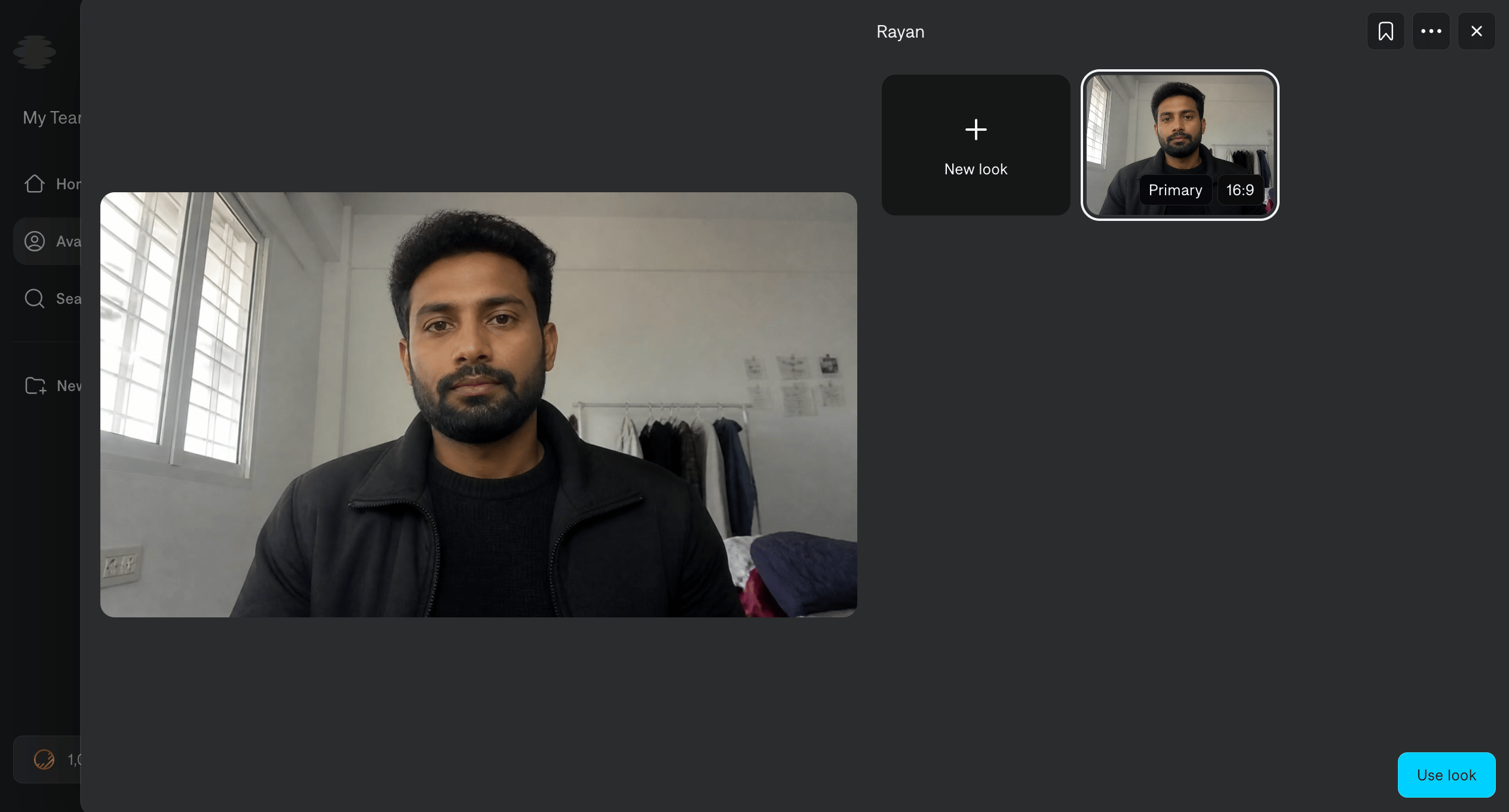
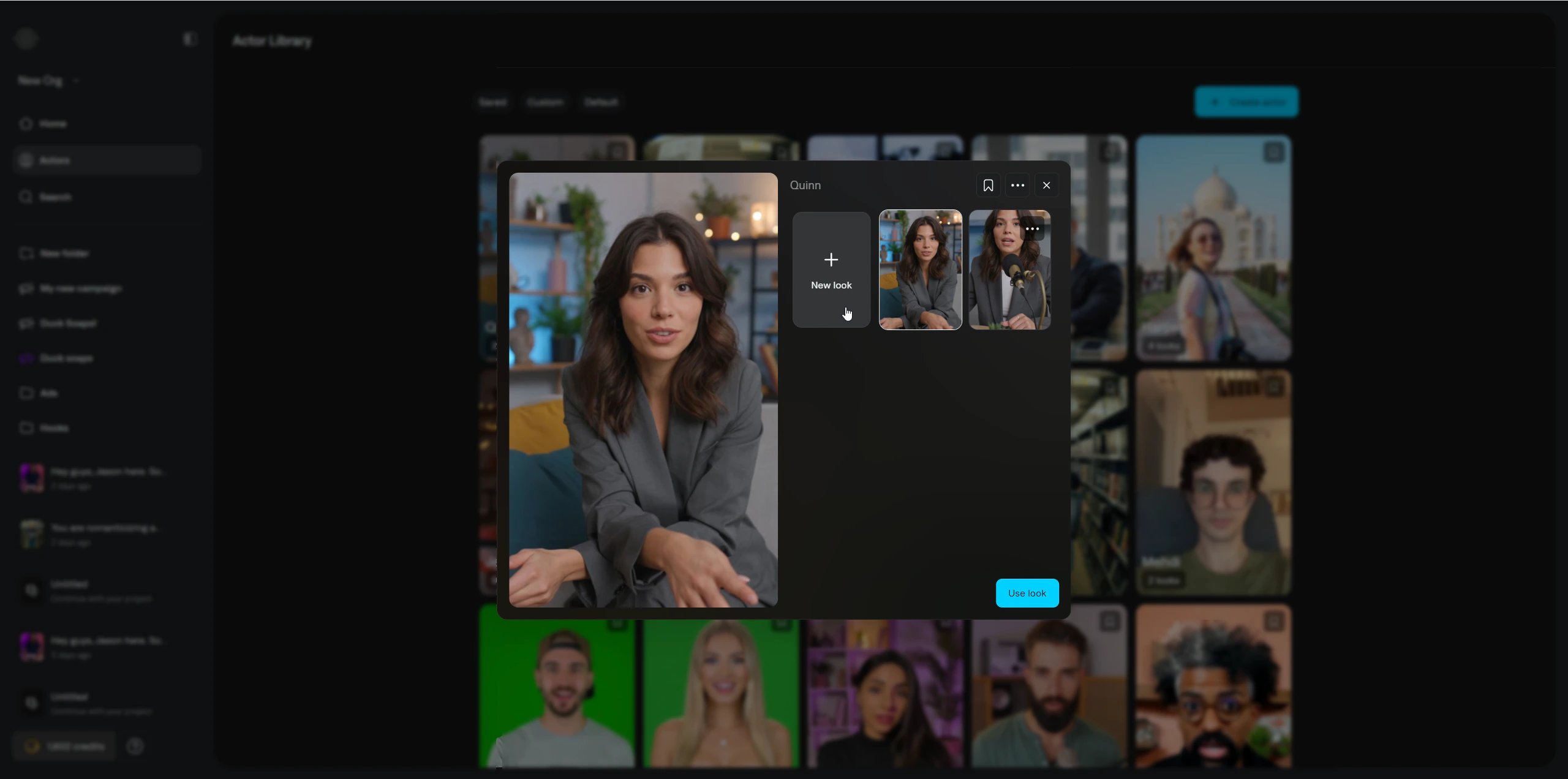
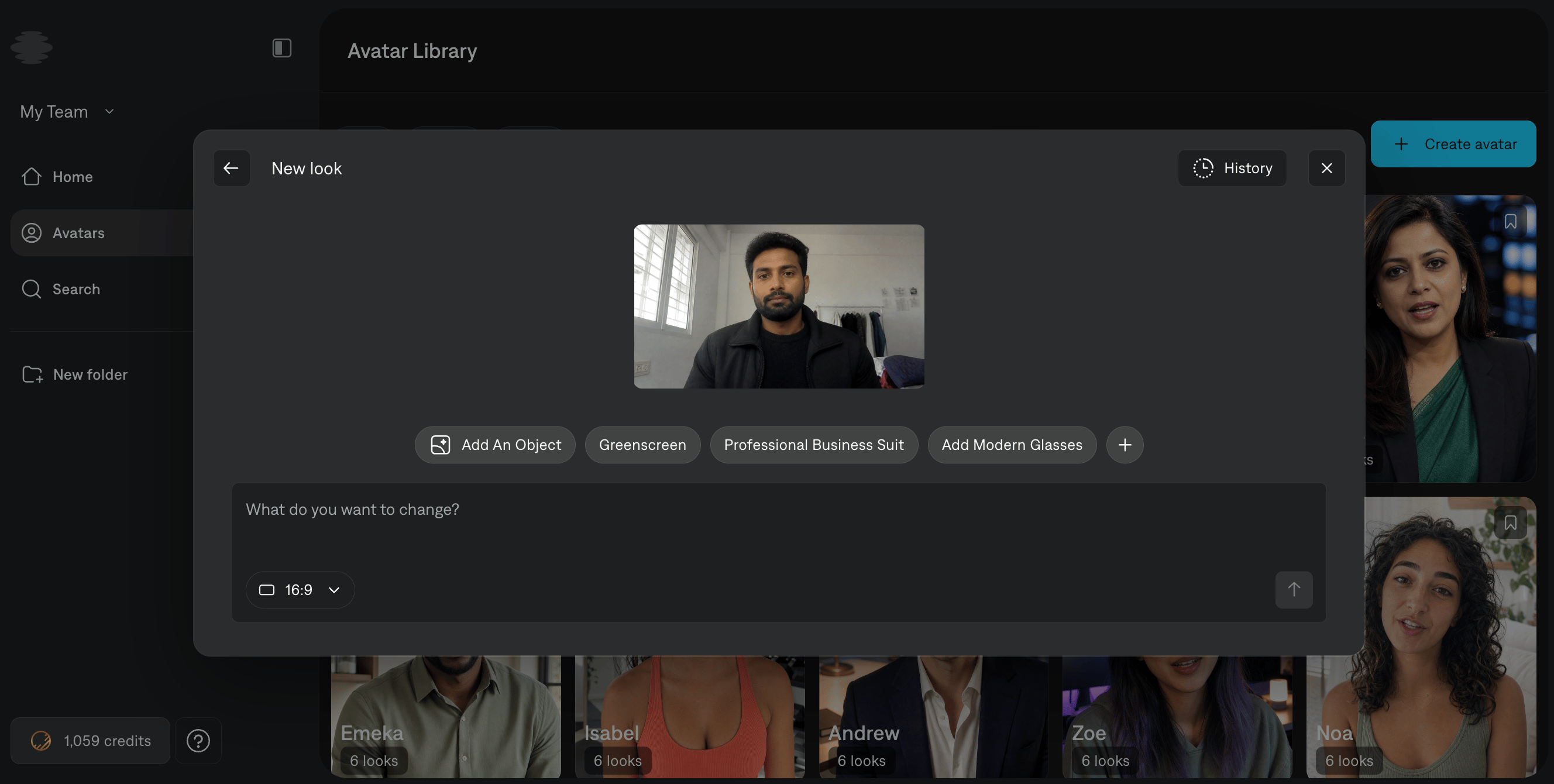
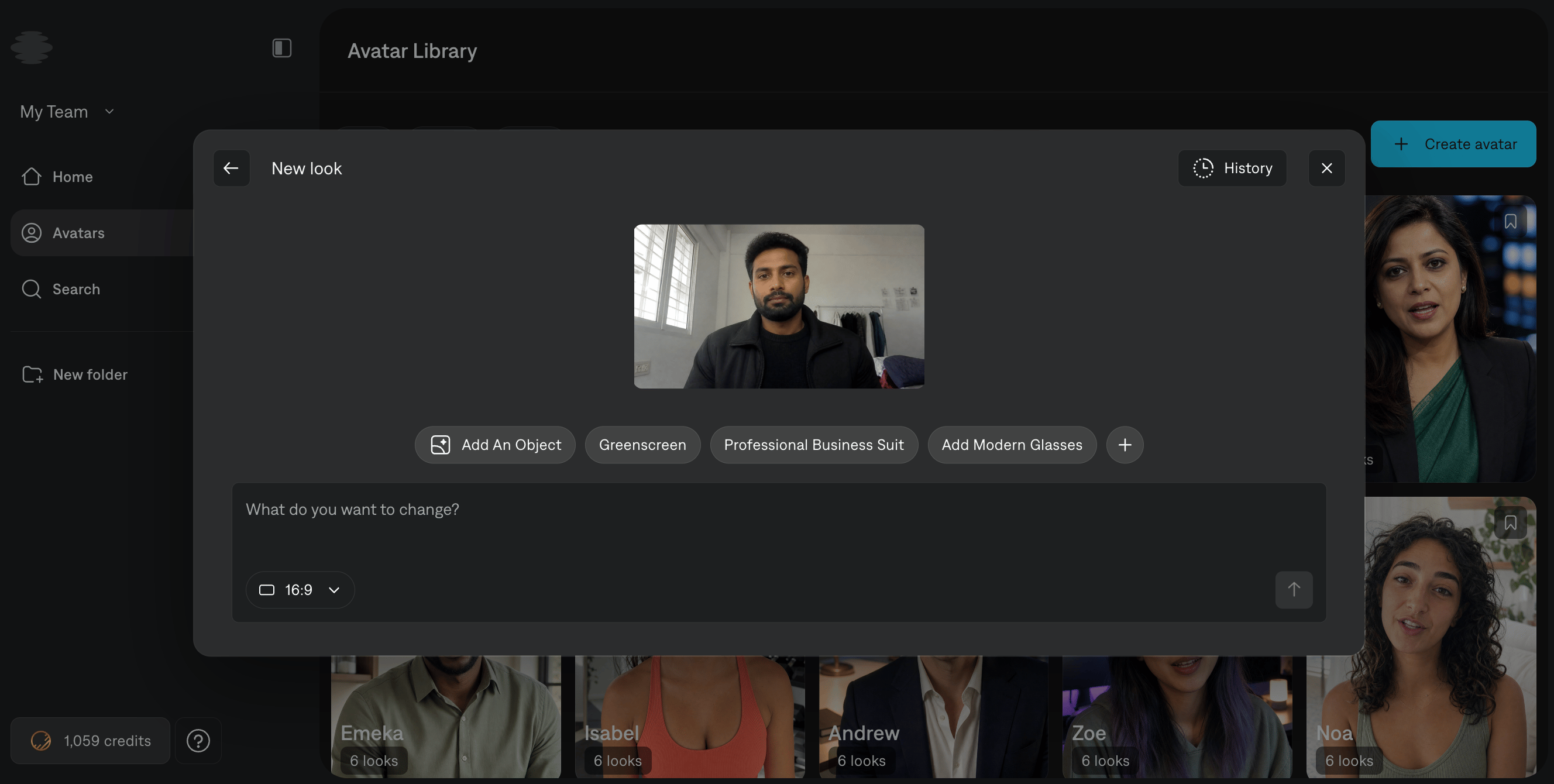 When you have the look you want, save it to your **Avatar library**.
To review avatars you generated earlier, click **History**.
When you have the look you want, save it to your **Avatar library**.
To review avatars you generated earlier, click **History**.
 ## Create an avatar from a prompt
Click **Create avatar**, then choose **Describe your avatar**.
## Create an avatar from a prompt
Click **Create avatar**, then choose **Describe your avatar**.
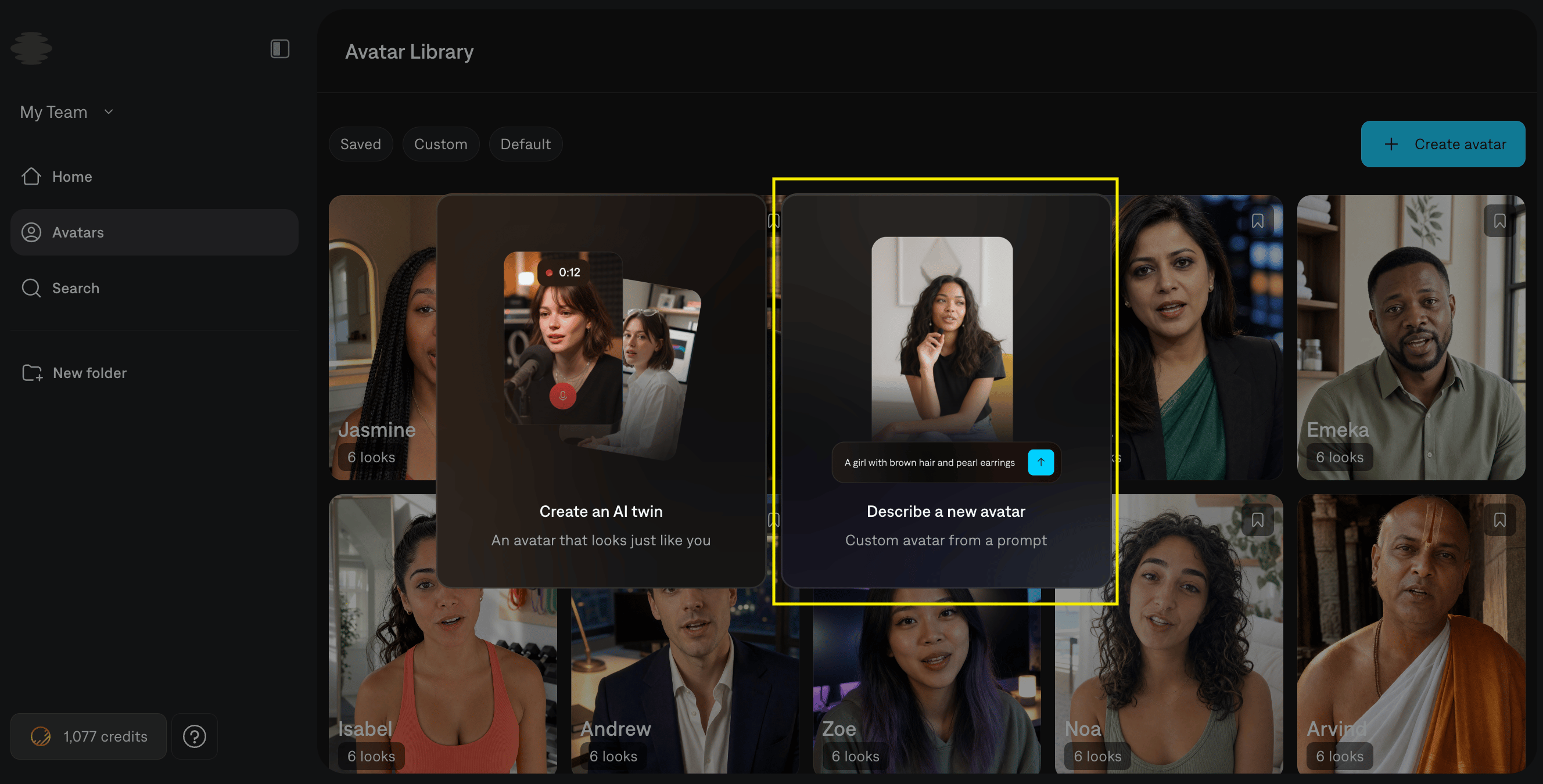
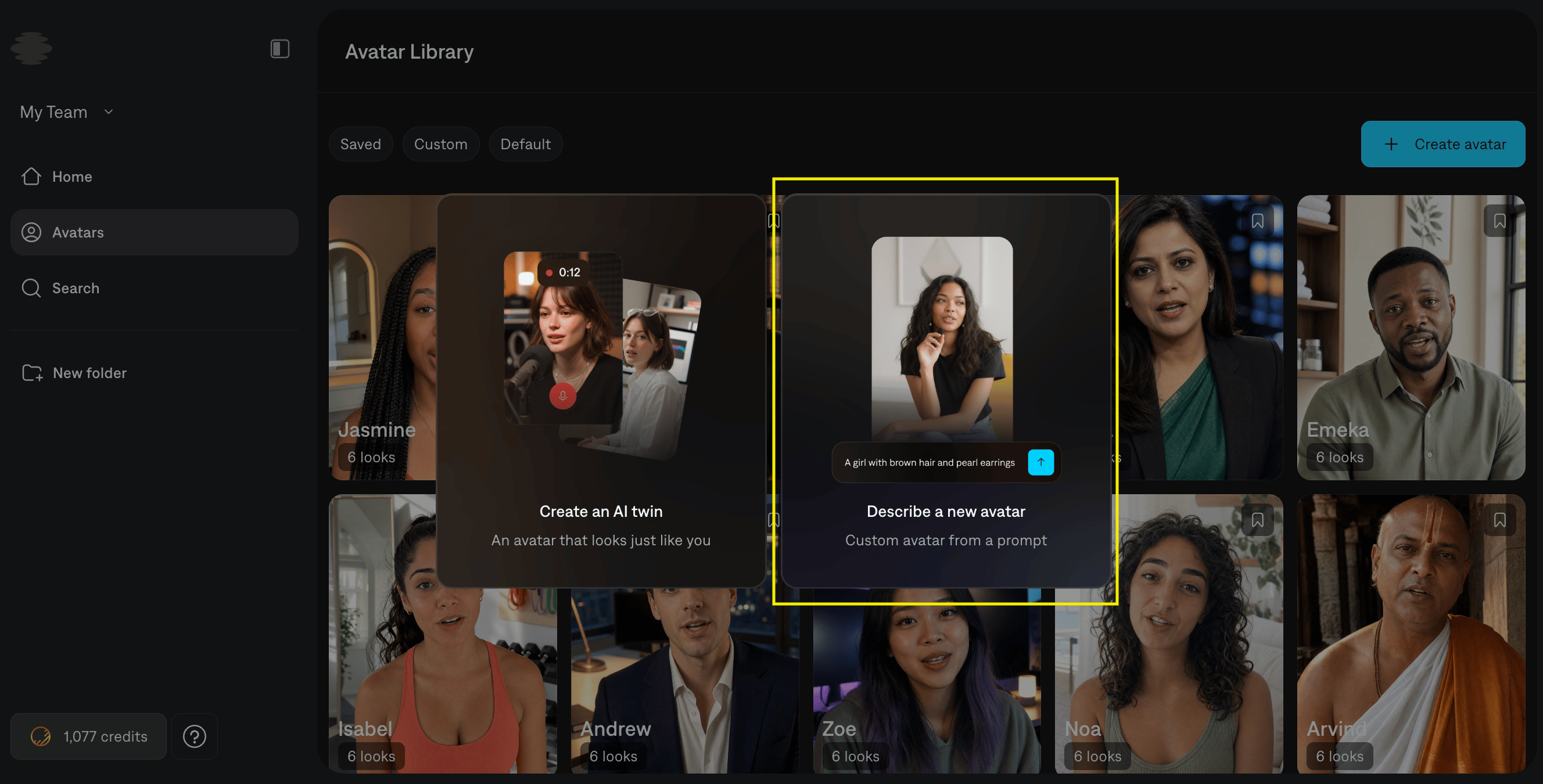 Describe the person you want in one flowing scene description. Include appearance details such as gender, age, hair, clothing, and accessories, how they face the camera, and the setting or lighting you want. Match the actor to the voice you plan to use. For a full prompt guide with examples, see the [Mirage prompt guide](/help/mirage/mirage-prompt-guide).
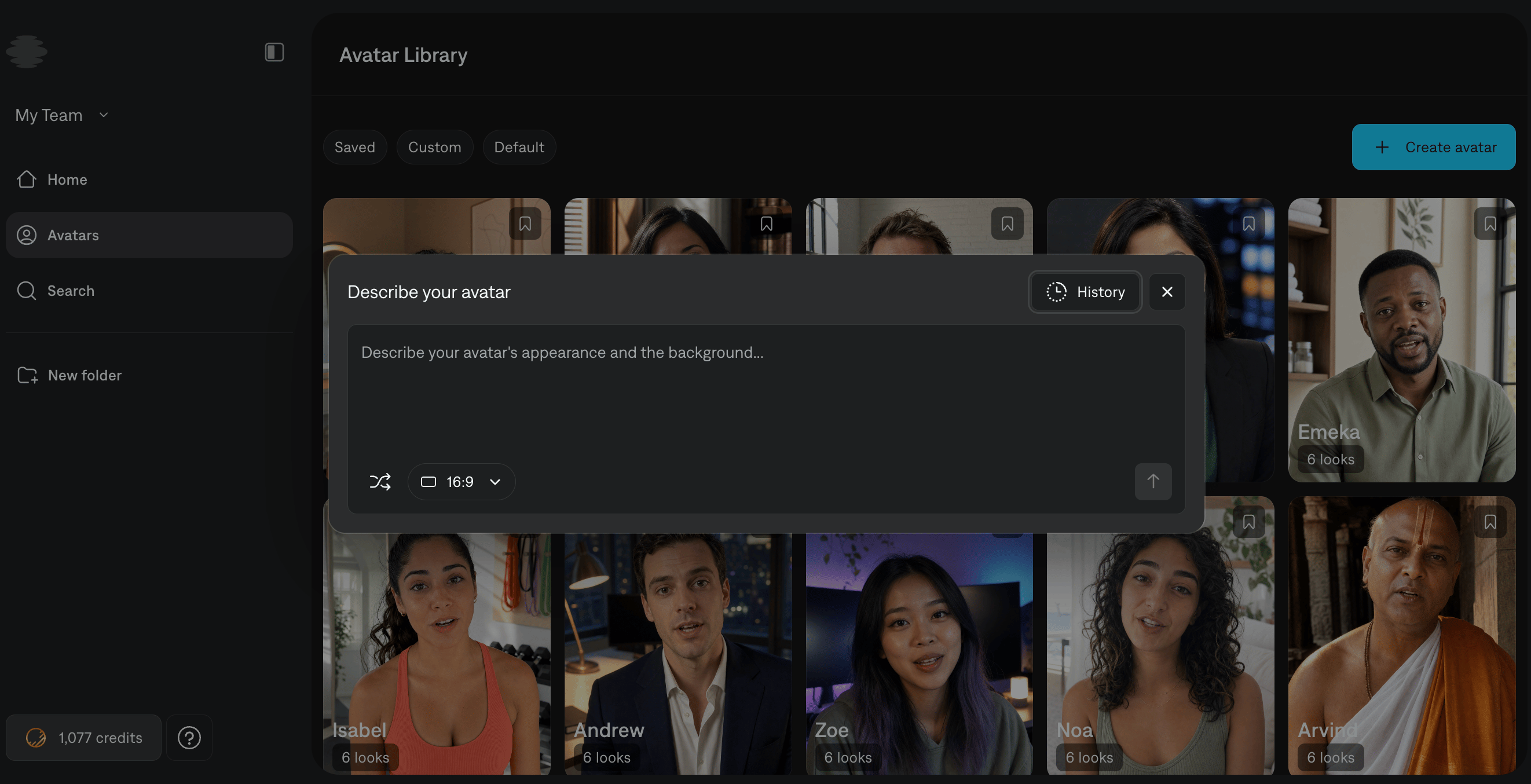
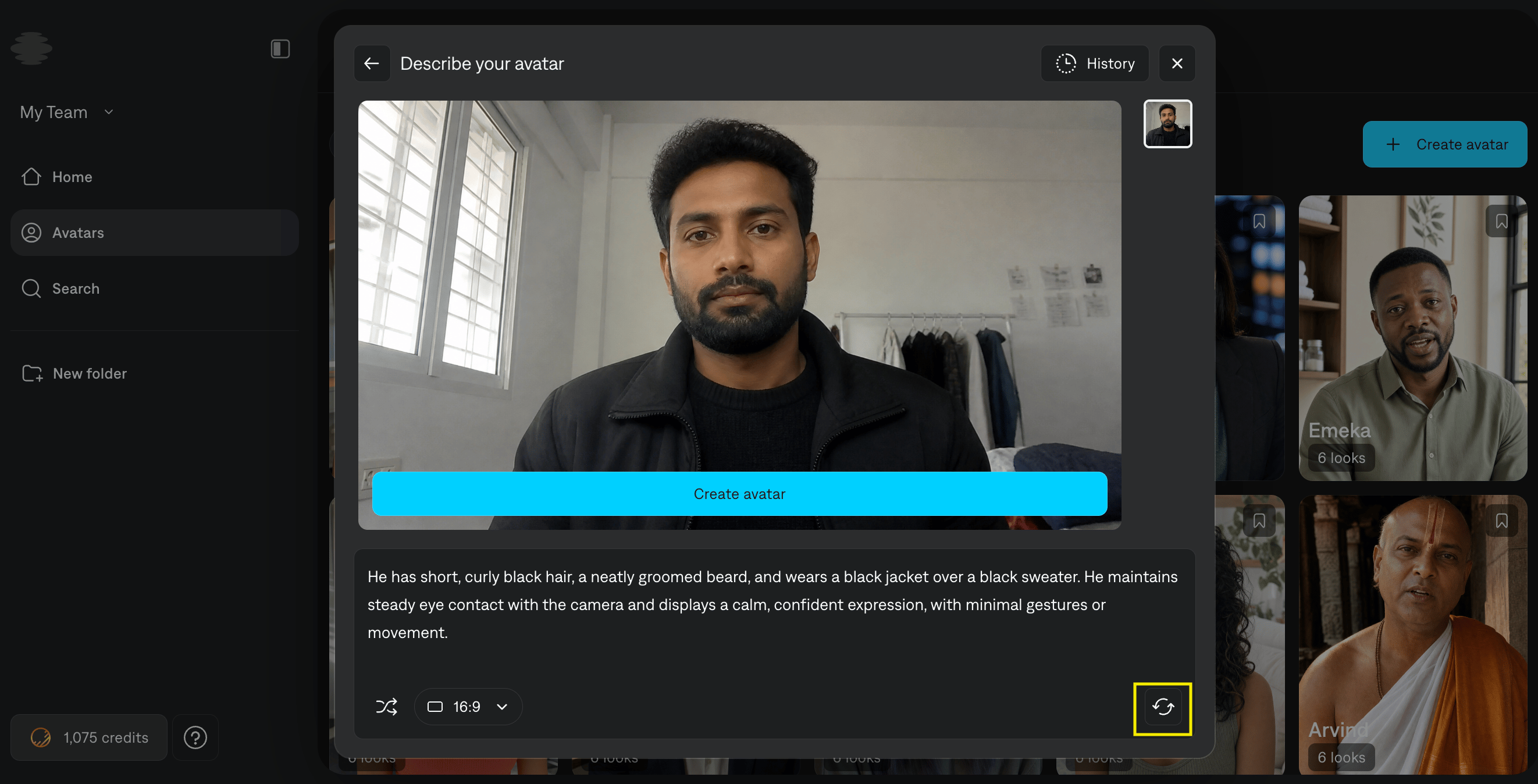
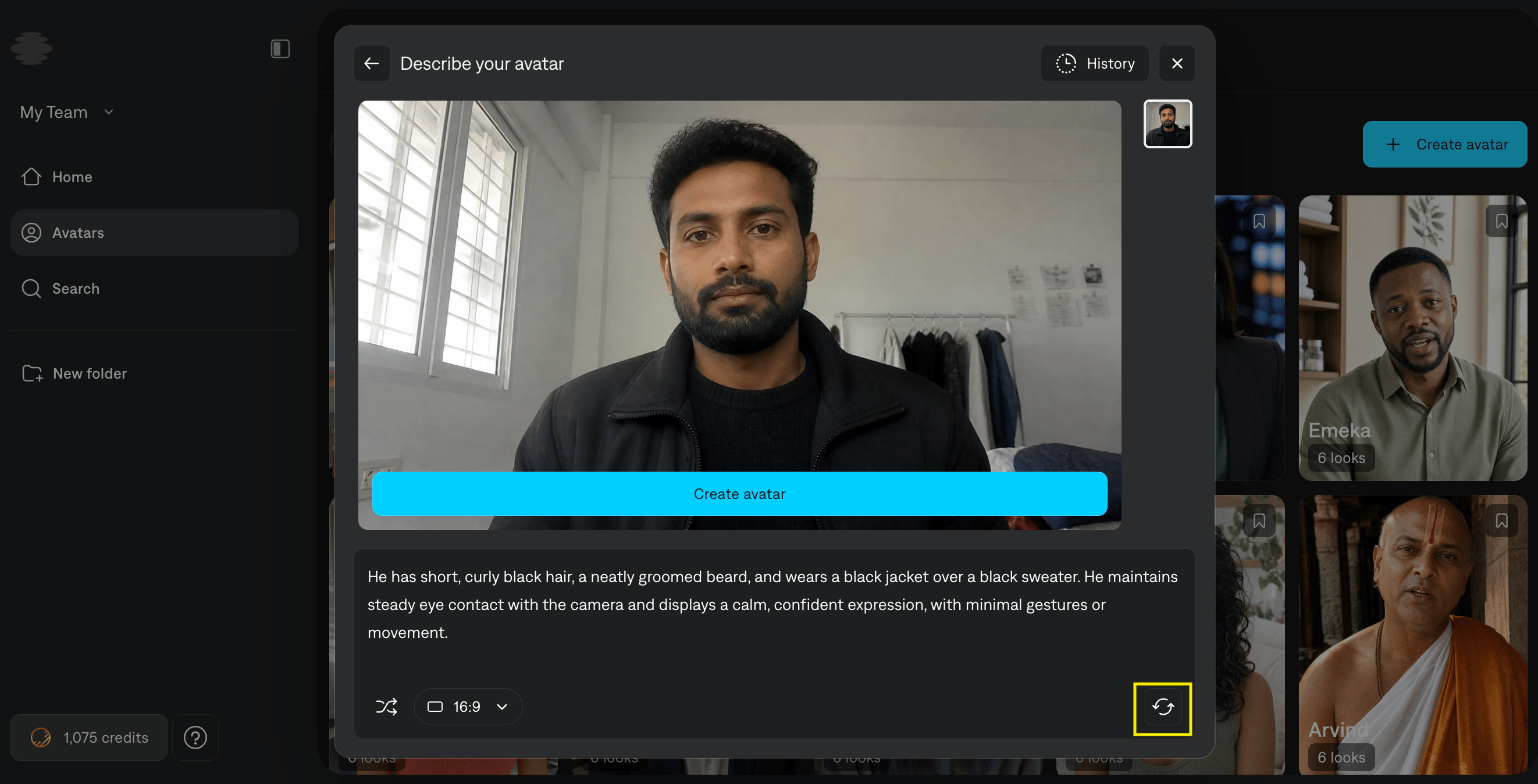
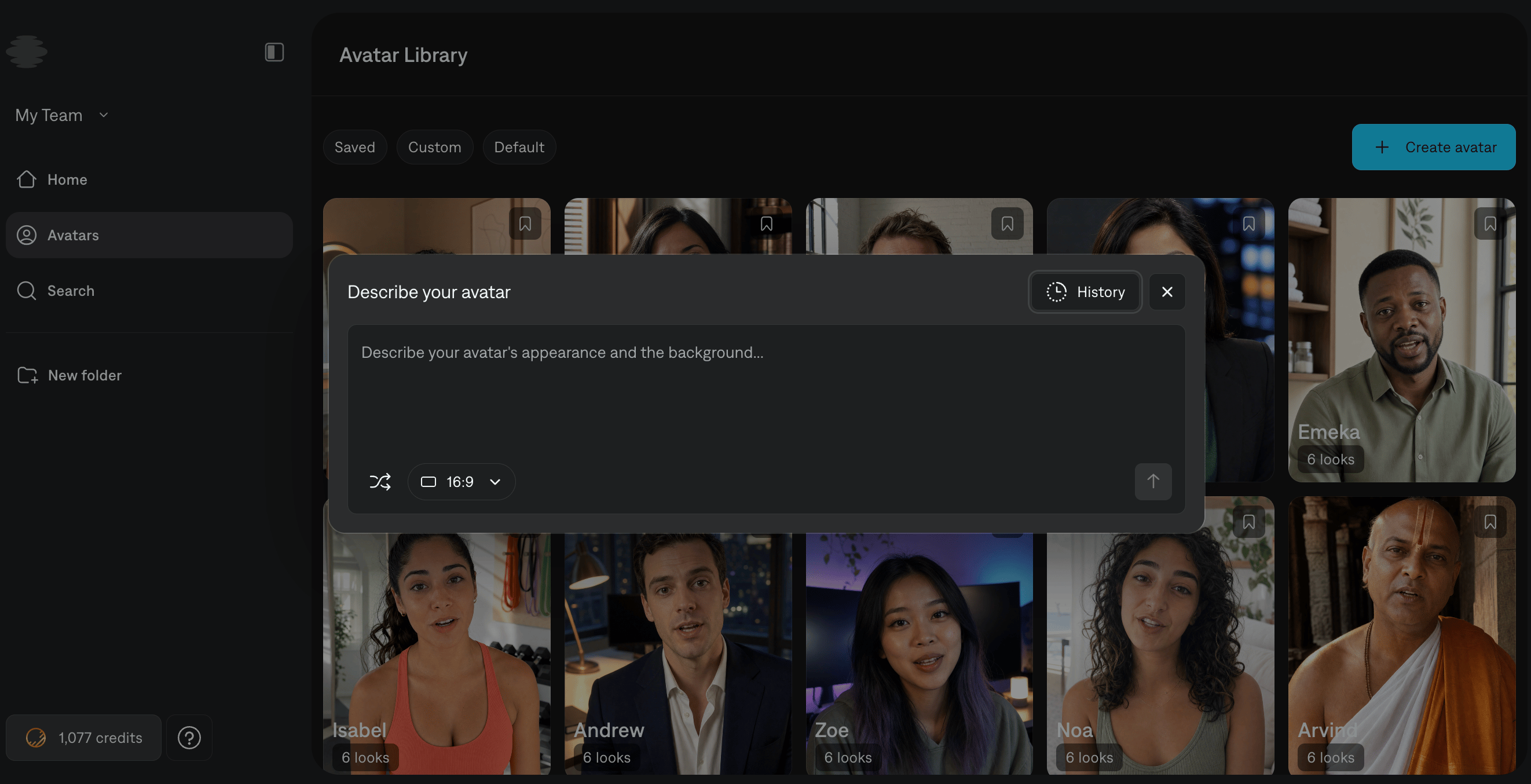 After you submit the prompt, Captions generates an avatar. You can regenerate a different avatar by clicking the regenerate button.
 ## **Open Avatars from Home**
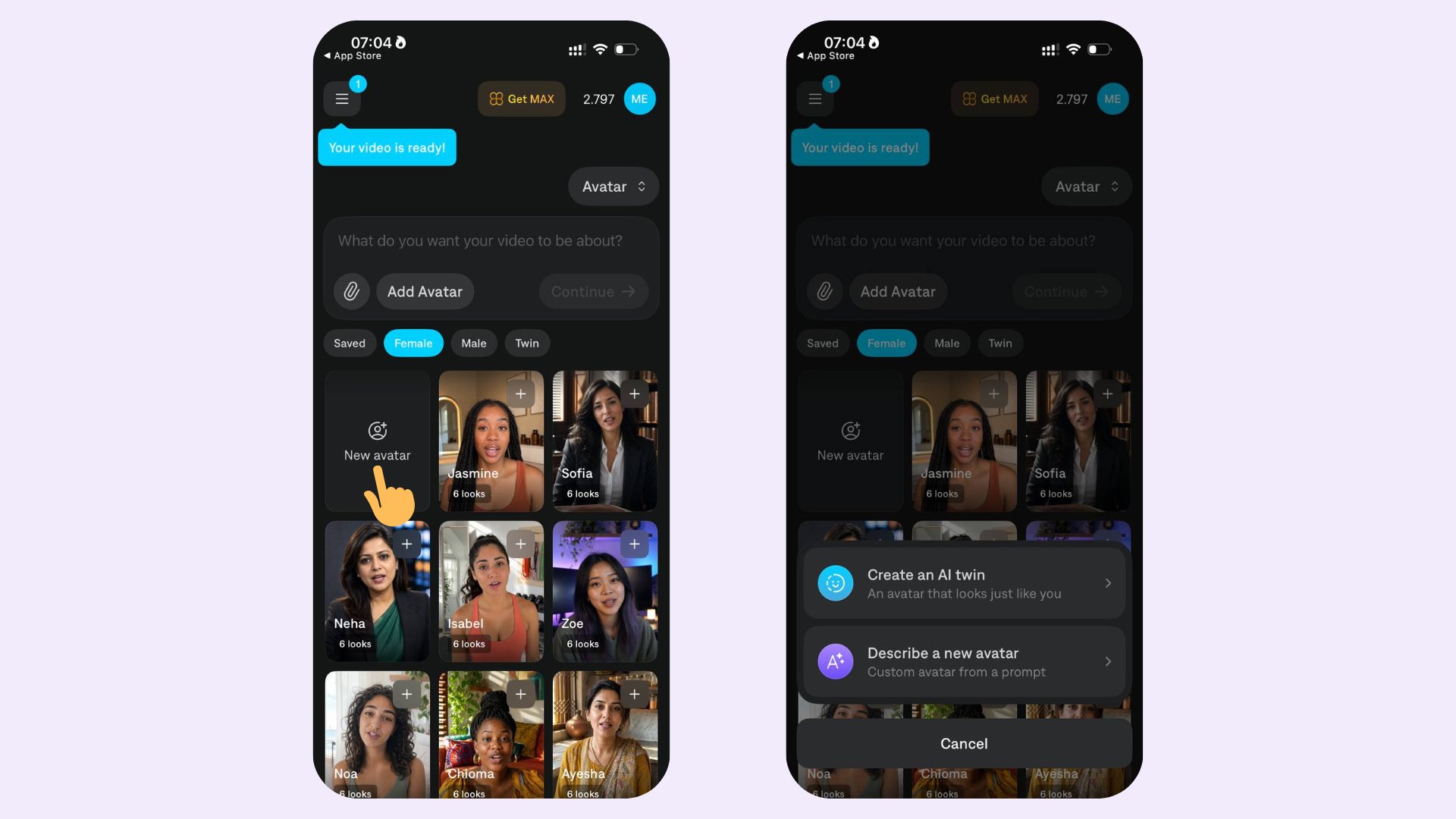
On the **Home** screen, scroll down until you see the avatars library. There, you can select and filter avatars by **saved**, **gender**, and **twin**.
## Create an AI Twin
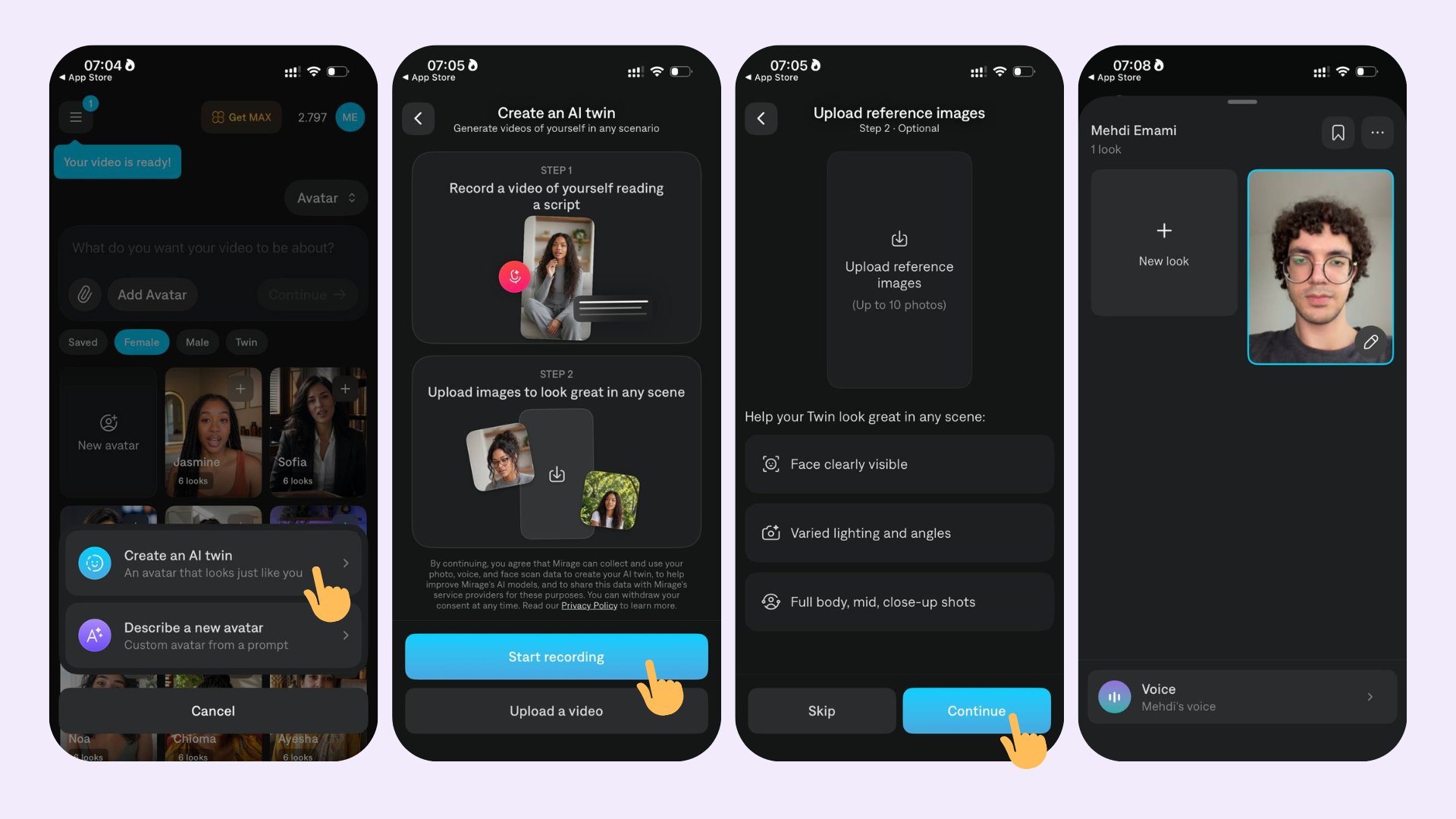
To create an AI twin of yourself, tap **New avatar** and select **Create an AI twin**.
## **Open Avatars from Home**
On the **Home** screen, scroll down until you see the avatars library. There, you can select and filter avatars by **saved**, **gender**, and **twin**.
## Create an AI Twin
To create an AI twin of yourself, tap **New avatar** and select **Create an AI twin**.
 You can create your AI twin by recording a video of yourself reading the script that shows up on screen, or upload an already recorded video on your device. After confirming the video, you can upload reference images of yourself in different environments. This will help Captions generate more diverse and accurate looks for your AI twin.
 ## Create an avatar from a prompt
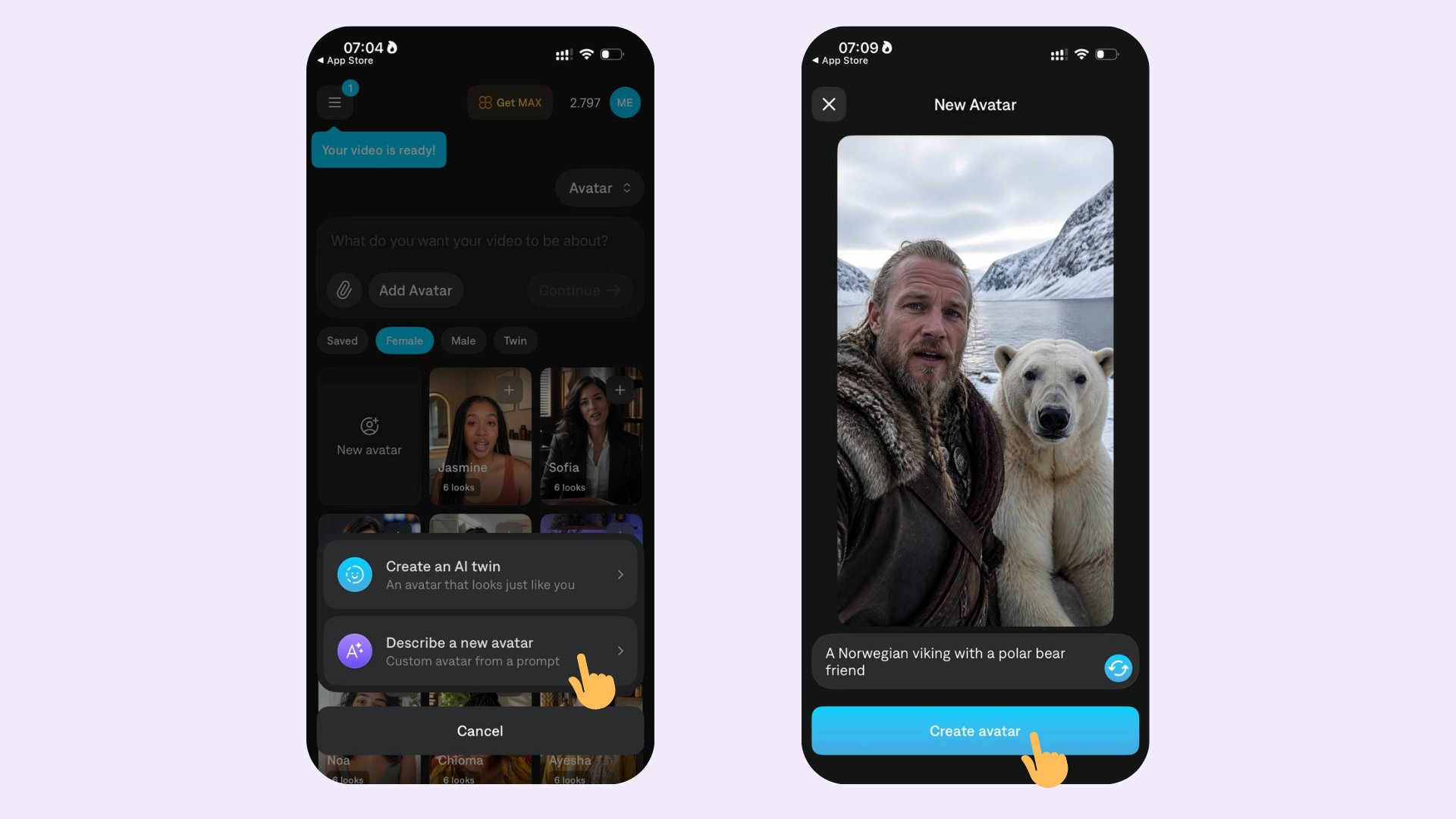
To create an avatar from a prompt, tap **New avatar** and select **Describe a new avatar**. Then describe your avatar in the prompt field and select your desired aspect ratio.
## Create an avatar from a prompt
To create an avatar from a prompt, tap **New avatar** and select **Describe a new avatar**. Then describe your avatar in the prompt field and select your desired aspect ratio.
 ## **Browse the avatar library**
Tap **All avatars** to open the full **avatar library**. You will find all publicly available actors, plus your own private custom actors. Avatars you created on your account are labeled with a **Private** tag.
## [****](https://captions.ai/help/docs/project/mirage-edit-actors#create-a-custom-avatar-from-a-prompt)
## **Create a custom avatar from a prompt**
Tap [**Create AI Twin**](https://captions.ai/help/guides/advanced/ai-twin-setup) to create an avatar based on your face. You will be asked to take a **selfie**. Keep your whole face visible and stay close enough to the camera that your face is clear in the frame.After the selfie, you can record a few short **voice recordings** by reading the scripts on screen. This step is optional and you can skip it, but it helps your actor sound like you.
If you record voice clips, you can choose which AI model generates your [**voice clone**](https://captions.ai/help/guides/advanced/voice-clone). The **ElevenLabs** model works well in most cases. If you want your original accent preserved as closely as possible, select the **Mirage** model.
Actor generation can take a few minutes. When it finishes, your new **AI Twin** appears in the Actor library.
## [****](https://captions.ai/help/docs/project/mirage-edit-actors#create-a-custom-avatar-from-a-prompt-2)
## **Create a custom avatar from a prompt**
From the Avatar library, tap **Describe avatar**. Describe your actor and their characteristics in the prompt field. You can regenerate if you are not happy with the result. When you like the avatar, tap **Save avatar** to add them to your library.
## [****](https://captions.ai/help/docs/project/mirage-edit-actors#avatar-voice-and-looks)
## **Avatar voice and looks**
Tap an actor in the Avatar library to open their details. From there, you can change the actor’s **voice**.
To add another appearance, tap **New look** and describe the new look in text.
Tap the **triple-dot** icon to open the avatar’s settings. You can **rename** the avatar or **delete** them from your library.
## **Browse the avatar library**
Tap **All avatars** to open the full **avatar library**. You will find all publicly available actors, plus your own private custom actors. Avatars you created on your account are labeled with a **Private** tag.
## [****](https://captions.ai/help/docs/project/mirage-edit-actors#create-a-custom-avatar-from-a-prompt)
## **Create a custom avatar from a prompt**
Tap [**Create AI Twin**](https://captions.ai/help/guides/advanced/ai-twin-setup) to create an avatar based on your face. You will be asked to take a **selfie**. Keep your whole face visible and stay close enough to the camera that your face is clear in the frame.After the selfie, you can record a few short **voice recordings** by reading the scripts on screen. This step is optional and you can skip it, but it helps your actor sound like you.
If you record voice clips, you can choose which AI model generates your [**voice clone**](https://captions.ai/help/guides/advanced/voice-clone). The **ElevenLabs** model works well in most cases. If you want your original accent preserved as closely as possible, select the **Mirage** model.
Actor generation can take a few minutes. When it finishes, your new **AI Twin** appears in the Actor library.
## [****](https://captions.ai/help/docs/project/mirage-edit-actors#create-a-custom-avatar-from-a-prompt-2)
## **Create a custom avatar from a prompt**
From the Avatar library, tap **Describe avatar**. Describe your actor and their characteristics in the prompt field. You can regenerate if you are not happy with the result. When you like the avatar, tap **Save avatar** to add them to your library.
## [****](https://captions.ai/help/docs/project/mirage-edit-actors#avatar-voice-and-looks)
## **Avatar voice and looks**
Tap an actor in the Avatar library to open their details. From there, you can change the actor’s **voice**.
To add another appearance, tap **New look** and describe the new look in text.
Tap the **triple-dot** icon to open the avatar’s settings. You can **rename** the avatar or **delete** them from your library.